The video player
1. Reading a transcript#
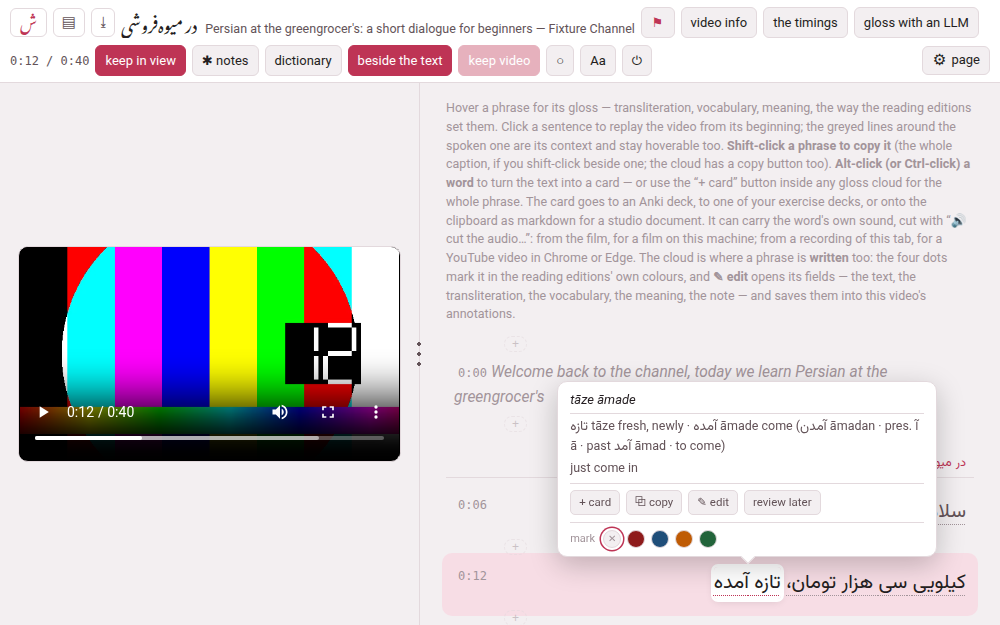
The video sits at the top of the page (or at its left, side by side) and the whole transcript runs underneath, one line per caption, each with its time in front of it. The line is cut into phrases — the small units a gloss translates as one thing — and each phrase is underlined with a dotted line.
Point at a phrase and its cloud opens: the reading in kana (Japanese), the transliteration, the vocabulary line, the meaning, and a note where the automatic transcript heard something wrong. Words of the video’s language inside a vocabulary line or a meaning are set in the language’s own face and direction, so a Persian word inside an English sentence reads the right way round.
A vocabulary line is either plain text or written in the books’ entries (\dw, \vb, \bw, \pw), and the cloud draws the second exactly as a book’s reader does: each word of the language in its own script and face, its romanisation in italics, a verb with the labels its language prints (pres., past…). A line with a macro in it is drawn that way, on a phone too; any other line is drawn as it always was, so a video glossed before this looks the same. Opened in an older Parseh, a line in the books’ entries shows its source instead — nothing is refused and nothing breaks.
Click a line — or its time — and the video plays from that line’s beginning. That is the main way to work: hear it, read the cloud, click, hear it again. A click that ends a text selection does not replay, so you can still select words to copy them.
While the video plays, the line being spoken is lit: full ink on a tinted band. The lines just before and after it are grey, and the rest fainter still. Nothing is hidden, and every line stays hoverable, because a sentence often runs over two or three captions — the neighbours are the context you need, and the fade tells you where you are. Before the video has started, every line is in full ink.
A few lines look different on purpose:
- A chapter heading
- stands above the caption it opens: the title of a chapter marker the uploader put in the transcript (
Capitolo 3: Al mercatogives Al mercato). - A caption entirely in another language
- — the English opening many lessons start with — is grey and italic and has no phrases: it is never glossed.
- A run drawn bare
- inside a caption — a phrase marked plain, or a stretch of English in a Persian line (a run with none of the language’s own script and nothing glossed on it) — is plain text with no cloud. A phrase of the language that nobody has glossed yet is never bare: it is a phrase like any other, hoverable, with a cloud that says nothing glossed yet and a ✎, so that it can be written (Editing a phrase) or looked up (Reading help).
2. A sound instead of a video#
A video whose media is a sound — a recording added by its path or sent (A film on this machine) — has no frame to show. A bar fills the video’s place: the shape of the sound, whole, with the playing place on it. Press anywhere on it to go there, or drag along it to scrub; the browser’s own play controls are under it, and a hairline at its foot marks where each caption starts. On a phone it fills the same place. Everything on this page works as it does for a film — the lit line, keep in view, Pause while a gloss is open, a click to replay, the clouds, the cards — except what needs a picture: the grip and beside the text are not drawn, and a card has no frame, only the recording cut out of the sound. Without ffmpeg the bar is a plain track, and says so.
3. Copying, and making cards#
- Shift-click a phrase
- to copy its text; Shift-click beside the phrases, on the line, to copy the whole caption. While Shift is held, the phrase under the pointer is outlined. The cloud’s ⧉ copy button copies the phrase too, which is the way on a touch screen.
- Alt-click (or Ctrl-click, or ⌘-click) a word
- to make a card of that very word, with the phrase’s meaning, the caption as its context and the vocabulary as its notes. While one of those keys is held, the word under the pointer lights up. + card in a cloud does the same for the whole phrase. The card can go to an Anki deck, to one of your exercise decks, or onto the clipboard as studio markdown, and it can carry the word’s own sound and a frame of the video — the section Cards and Anki explains the sheet. For a Markdown or exercise-deck card, Parseh automatically wraps the target and its context in target-language blocks, line by line, so RTL punctuation and wrapped lines keep their reading direction. It leaves a field that already has markup untouched; Anki cards are unchanged. The vocabulary goes into the notes as plain text, never with its macros.
The cloud also has ✎ edit and a row of four colours, which write into the video: see Editing a phrase. And review later, which flags the phrase to come back to (Review later).
4. The bar#
Every control, left to right. What the bar keeps in reach is what you press while watching; the rest is in the ⚙ page panel, at the right end (The ⚙ settings of a page):
| Control | What it does |
|---|---|
| ش | back to the hub |
| ▤ | the channel’s page: all its videos |
| ⤓ | download the video as one zip another Parseh can install — its tooltip gives the size when the zip carries a film (Taking videos away) |
| the title | the title in the video’s language, then in Latin letters, and the channel |
| video info | the title, the channel, the level and the blurb, edited (Video info) |
| the timings | moves where each caption starts, opening at the caption you are on (The timings) |
| gloss with an LLM | a panel that copies a prompt for a run of captions you pick, and fills in the answer where nobody has glossed (Glossing captions with an LLM) |
0:14 / 0:40 | where the video is, and how long it is |
| keep in view | keeps the spoken line in view (on until you turn it off) |
| ⚑ 3 | the phrases you flagged to come back to, and how many are in this video (Review later) |
| ✱ notes | lights every phrase that carries a note, counts them, and walks from one to the next with ‹ and › (off on every visit; not in the mobile interface) |
| dictionary | reading help under a phrase nobody glossed; shown once there is something to help with (Reading help) |
| kana only / pinyin only | Japanese and Chinese: the transcript as its reading alone |
| beside the text | the video beside the transcript instead of above it (not drawn for a sound, which has no picture to put there) |
| keep video | keeps the video in view while you scroll (on until you turn it off) |
| ○ / ● / ◐ | the theme — light, dark, sepia — one setting for the whole toolbox |
| Aa | opens the ⚙ panel at its text sizes and margins (below) |
| ⚙ page | every setting of this page in one panel: the three above that rest in it, the dictionary’s definitions and the way to get a dictionary, the speed and the skip, the sizes, the zoom, the colours |
| ⏻ | stops the Parseh server |
| Decompose Kanji / Decompose Hanzi | Japanese and Chinese: a character’s components (Reading help) |
A button that is lit (filled with the accent colour) is on. Every one of these switches is remembered in this browser and holds for every video — except ✱ notes, which is a tool for looking and is off every time the page opens. What is in the panel and not in the bar: Pause while a gloss is open, Show the dictionary’s definitions, Translate the definitions into the gloss language, Get a dictionary for this language →, Diacritics, Video size, Skip distance, and Show the lines around on a phone.
There is no speech to text here. The player has no transcribe button, no transcribe again and no speech model to choose, and none of it is loaded on this page: a transcript that speech to text made was made on the add page, before the video was added, and is edited from then on like any other.
keep in view#
With keep in view on, the page scrolls as the video plays so that the spoken line stays on screen. It waits for you: for two and a half seconds after you turn the mouse wheel or drag the page with a finger, it leaves the page where you put it, so you can read ahead or look back without a fight. Turning keep in view on brings the spoken line back into view at once. In the panel it is Keep the playing caption in view.
Pause while a gloss is open#
With Pause while a gloss is open on — in the ⚙ panel’s Watching & reading, where it has no button in the bar — pointing at a phrase pauses a playing video, and moving off it lets the video go on — after a third of a second, so that moving from one phrase to its neighbour does not make it stutter. It turns the page into something you read at your own pace without touching the keyboard. The video does not start again underneath a card sheet, and if you press play yourself in the meantime, it leaves that alone.
A book read aloud has the same switch in its reader, worded the same, in the browser interface and on a phone (Playing and listening).
✱ notes#
A phrase can carry a note: the aside under its meaning, which a model leaves when something needs saying — a slip it noticed in the transcript, what was really said, a cultural point (The note). A highlight over a long transcript is for seeing where those are, after an LLM has glossed a video for instance. It is about what is written on a phrase: the notes you write in the seam between two captions (Notes in the seam) are marked in the seams already, and are not what this button lights.
With ✱ notes on, every phrase that has a note is underlined with a dashed line in the accent colour and followed by a small ✱, and the button says how many there are (✱ notes 7). ‹ and › appear beside it and walk from one such phrase to the next, in the order of the transcript, scrolling each into view below the bar and the video, and going round from the last to the first. (In a window as narrow as a phone’s, where the bar slides away as the page moves down, it stays while ✱ notes is on, so that the arrows are in reach.) Point at a lit phrase and its cloud shows the note as its last line; ✎ edit changes it or empties it, and the lit phrases and the count follow a save at once.
It is a way of looking and changes nothing: a colour mark shows beside it (the phrase keeps its own colour, and the underline and the ✱ are the accent’s), no text is added to the line — selecting, copying and the timings read it as they always did — nothing is hidden, and a click on a lit phrase does what it always does. It writes nothing and asks the server nothing, and it is off every time the page opens. A note of nothing but spaces is no note. A phrase drawn bare — one marked plain, which has no cloud — is lit and counted too if the file gives it a note, since there is nowhere else to see it. It is a button of the browser interface: the mobile interface, which writes nothing, has none.
keep video, and the grip#
With keep video on (the default), the video stays stuck under the bar while the transcript scrolls beneath it. Off, it scrolls away with the page, which leaves the whole window to the text. In the panel it is Keep the video in view.
The little pill under the video is a grip. Drag it down for a bigger video, up for a smaller one — the height follows the width, at 16:9 — and double-click it to go back to the default size. The size is remembered. The panel’s Video size is the same size on a slider, from the smallest the window allows to the largest, with its width in pixels beside it.
Beside the text#
beside the text (Video beside the text in the panel) puts the video in a column on the left and the transcript on the right. On a wide screen it is usually the better way to work: the video keeps a decent size instead of being squeezed into the top of the window, and far more of the transcript is in view at once.
- The grip becomes the divider between the two columns and drags sideways; the video fills whatever width you give its column, from a narrow one up to about three quarters of the window.
- keep video is greyed out: beside the text the video is always in view, so there is nothing left for it to decide.
- The two layouts remember their own sizes, because the grip resizes a different thing in each; a double-click forgets the size of the layout you are in.
- Below 860 pixels of window width there is no room for two columns, and the page stays stacked whatever the setting says. Widen the window again and it goes back to side by side.
Aa: text and margins#
Aa opens the ⚙ panel at its Text group: sliders that apply at once and are remembered in this browser:
| Slider | Range | Starts at |
|---|---|---|
| Persian text size (the video’s language: Japanese…) — the transcript’s text | 7–43 px | 20 px |
| Subtitle size (a phone’s layout; the words over the video on the whole screen) | 6–48 px | 20 px |
| Gloss size — the text of the cloud | 7–23 px | 12.5 px |
| Text width — the transcript’s column, never wider than the screen | 200–1680 px | 760 px |
| Line spacing — the space between lines | 0.5–1.9 × | 1 × |
| Space between characters (Japanese and Chinese) — below 0 the characters are set closer, until they touch | −0.1 to 1.5 em | 0 |
| Furigana contrast (Japanese) — how dark the kana over the kanji are, from the quiet grey (0) to full ink (100); below 0 the grey fades further | −60 to 100 % | 0 |
| Furigana size (Japanese) — the kana’s size against the kanji’s | 10–310 % | 50 % |
Put the text back to normal puts every slider back; ✕, Aa again or Esc closes the panel. On a phone held sideways with the video on the whole screen there is no ⚙: its Aa opens a small panel of its own with the subtitles’ size and the glosses’.
Diacritics#
A Persian or Arabic video whose lines are written with the small vowel marks has one more row in the panel, Watching & reading → Diacritics: off, the lines are drawn without the marks, as the language is ordinarily printed, and each phrase still opens its cloud. Only what is drawn changes — copying, cards, the editor and every lookup keep the phrase as it was written. A video whose captions hold no marks has no such row (Levels and their names).
⏻#
⏻ stops the Parseh server, after asking. If something is still at work — a download being packed, a video being added — it names it first and asks whether to stop anyway, because stopping cuts it off. Every page of Parseh has the same button.
5. Review later#
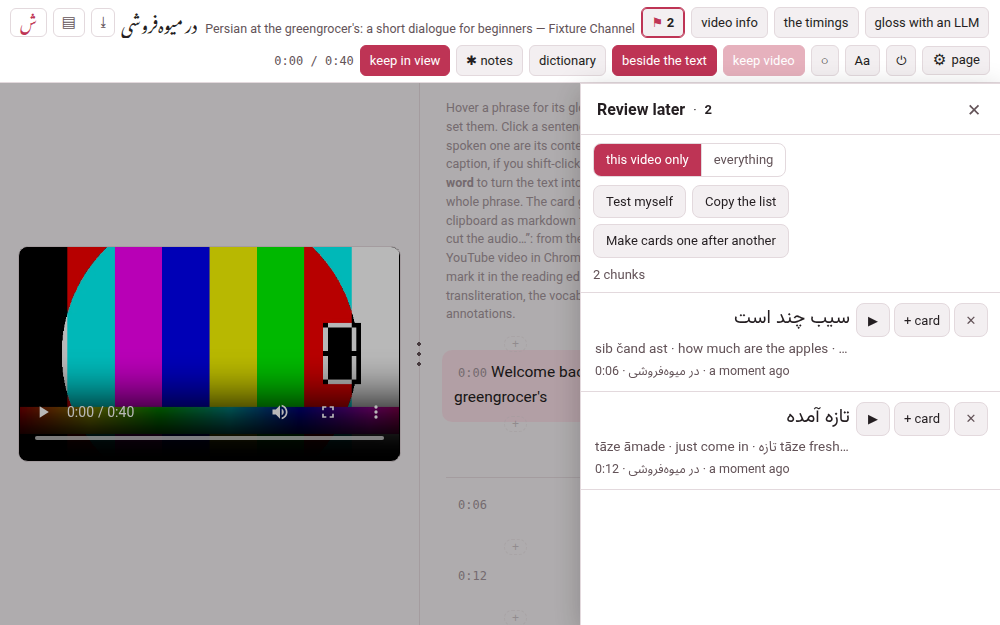
To come back to a phrase without breaking the pace, flag it: review later in the phrase’s cloud, the L key with the pointer on the phrase, or — on a touch screen — a held finger on a word. A flagged phrase wears a dotted line, and the ⚑ button in the bar, with the number flagged, opens the list: each phrase with its gloss and its time, ▶ to seek the video to the caption and play it, ✕ to remove it, + card to make its card (on a computer), Test myself and Copy the list. The flags are yours — they follow you to your other devices and are never written into the video. Review later has all of it.
6. A link to a moment#
An address ending in #t= and a number of seconds — /youtube/v/<id>/#t=95 — opens the player with the video at that second. The cards you make from a video carry such a link back to the moment they were made at.
7. When the video cannot play#
- A YouTube video that will not start
- : the video’s place says what actually happened — YouTube’s player could not be fetched, or was fetched but never started — with Try again, which retries without reloading the page, and Watch it on YouTube. It no longer blames your connection for something it has not tested: a slow tunnel is not a missing internet, and the wait is given twenty seconds before anything is said. The transcript works throughout: the glosses, the clouds and everything you write are on this machine. On a phone over Tailscale this is usually DNS, not a broken connection, and the box says where to read about it: a phone on Tailscale that cannot reach the internet.
- A film or a sound on this machine
- needs no internet at all. If its file has gone missing the page says the film (or sound) that belongs to this video is not here any more and offers to have it sent again; if the browser cannot play or decode it, it says that instead (A film on this machine).
Only what needs the video itself waits for it. The timings play the video, so until it has loaded — no internet, a film gone or one the browser cannot play — they answer the player has not loaded yet; and a card’s sound clip, which is cut from the video, cannot be made from a YouTube video that has not loaded or from a film that is gone.
8. On a phone#
A phone has nothing to hover with, so a tap on a phrase opens its cloud and a second tap closes it — on any screen, including one that claims a hover it never delivers. A tap elsewhere on the line still plays it from its beginning. On a narrow screen the bar slides out of the way as the page moves down and comes back on the smallest move up, bringing the video with it; a desktop is left exactly as it is. On a phone the bar has ⚙: the page’s panel opens as a sheet from the foot of the screen — first a list of themes, each saying what it is set to, then one theme at a time, half the screen high or tall as you choose (The ⚙ settings of a page) — with everything the bar does not keep in reach, and, in its last theme, Use it without the computer, which keeps the video on the phone for when the computer cannot be reached (Browser and Mobile).
In the toolbox’s Mobile mode, a hardware keyboard’s ← and → skip the video by the same chosen seconds as ↺ and ↻. Shift changes nothing for a video: unlike a narrated book it has no subparagraph walker to preserve.
9. While something is working#
When the player is packing a download, the small Working pill of every Parseh page says so, and the hub lists it too, until it is done. The download itself is the browser’s: the file appears in your downloads when the zip is ready.