Studying
Study now on a deck’s page, or Study on its card, opens the study page. It shows the exercises that are due, one at a time and unsolved, and after each one it asks how it went.
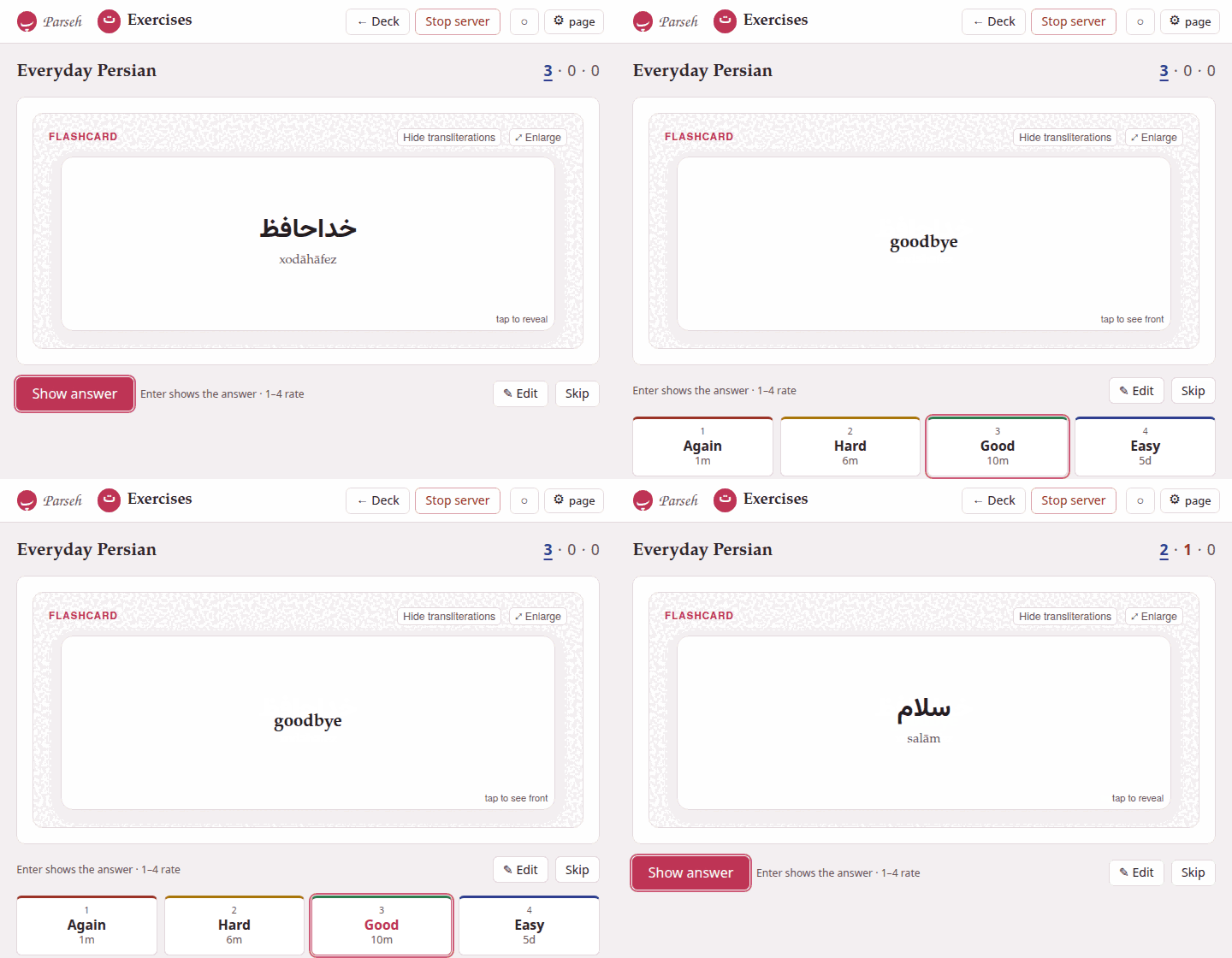
At the top, beside the deck’s name, the three coloured numbers say what is left — new, learning, to review — and the queue the exercise on screen comes from is underlined.
1. Answering#
An exercise with an answer — blanks, choices, pairs, sentences, true or false — you do as on any page, then press Check, or Enter. The result reads Correct or Not quite, the explanations appear, and the exercise is locked as you answered it. When you got a matching or a placement exercise wrong (pairs, blanks, a sentence or a list to put in order), its Correct answer is drawn under the result, since those only mark what was right and wrong; a choice shows the answer it wanted by itself.
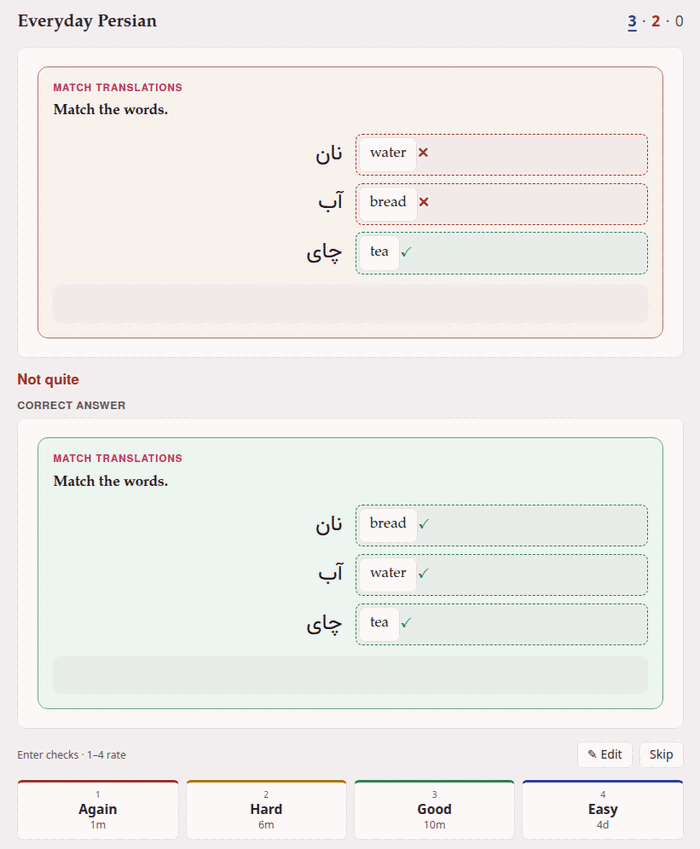
Enter right after a click on an answer checks the exercise. On an answer you reached with Tab, Enter does what it does on the page — picks that answer, presses that arrow — so the whole exercise can be done from the keyboard, and a click on Check (or Tab to it) checks.
A flashcard you turn with Show answer, with Enter, or with a click on the card (tap to reveal, it says in its corner). A click on the card’s 🔊, on a player, a link or a footnote’s mark does what that thing does and does not turn it. ⤢ Enlarge opens the same card large, over the page — the way to see a picture on a card properly — and turning the enlarged card (a click, Space or Enter) turns the card and counts as showing the answer; Escape closes it. The window closes by itself when the next exercise comes.
A follow-up — a chain of exercises answered one after the other (Follow-up questions) — comes a step at a time. The strip says Step 1 of 3, and the button in the bar at the foot is Check step (Show answer under a card); it says Correct or Not quite, the step’s own explanation appears between it and the next, and Next step (or Enter) brings the next one in. The four ratings come only after the last step, the focus on Again if any scored step was wrong and on Good if none was; the deck keeps how many steps were right beside the rating, and rates the chain as one exercise. Skip in the middle sets the whole chain aside.
An exercise that needs attention — one that no longer reads as an exercise — shows its errors and offers only ✎ Edit and Skip.
Recordings#
A flashcard plays its recordings as Anki plays a card’s sound: when the card is shown, the first recording on its front plays, once; when it is turned, the first on its back. A recording is a front-audio or back-audio field, or a recording line inside a jolly card’s field — whichever comes first on that side — and one laid out with a clip plays only its clip. With ⤢ Enlarge open, the enlarged card plays and the one under it keeps still. Whatever is playing stops when you rate or skip, or when the next exercise comes.
A browser that lets no page make a sound before it has been clicked plays nothing by itself until then (in Chrome, arriving by the Study now button counts as a click). The 🔊 and the players are always there to press.
An exercise’s own recordings — the audio: of a question — never play by themselves: they are there to press, as on a page.
2. Rating#
After the check or the turn, four buttons ask how it went. Each shows how long the exercise will wait if you press it:
| Button | Key | Press it when | For example |
|---|---|---|---|
| Again | 1 | you did not know it | 1m |
| Hard | 2 | you got there, with effort | 6m |
| Good | 3 | you knew it | 10m |
| Easy | 4 | it was too easy | 4d |
(The examples are a new exercise’s, with the deck’s default options. A review you know well shows days, months, years.)
The check never rates for you. A wrong answer only puts the focus on Again, and a right one on Good — press Enter or Space to take that suggestion, or any other button or key. Only you know whether a right answer was a guess, or a wrong one a slip of the finger. The rating and whether the check found you right are both saved in the exercise’s history.
The interval on each button is exactly what pressing it will give: the small spread the scheduler adds to longer intervals is worked out in advance, not drawn by lot. The scheduler explains where the numbers come from.
The rating is saved at once, and the next exercise follows.
3. Editing and skipping#
✎ Edit opens the exercise in the form (or as markdown, if the form cannot show it). Save it and the corrected exercise is shown again, unanswered, in the same place in the queue — Exercise saved: its scheduling is unchanged. A typo found while studying is mended on the spot, and costs the exercise nothing.
Skip sets the exercise aside, unanswered and unscheduled, for as long as the page stays open: it will not come back in this session, and it keeps its place in the deck for the next one — reload the page and it is there again.
4. When there is nothing left#
Nothing more to study now, the page says, and under it when the next exercise is due — Next exercise in 45m, tomorrow, in 5d — or No exercises scheduled. (With the default options a learning step never waits long enough to end up here: the page shows it at once, by learning ahead. Minutes and hours here mean longer learning steps, or — in minutes — the new day starting within the hour.) Back to the deck returns to the deck’s page.
If you skipped any, it says how many — 2 exercises skipped this time. — and Study the skipped ones brings them back.
If the next exercise falls due within twenty minutes, leave the page open: it brings that exercise by itself when it does. That happens in the last twenty minutes before the new day starts at four o’clock, when the new day has exercises for you, and with a deck whose learn_ahead_minutes you have lowered by hand (Deck options): its nearer learning steps then wait here too.
5. What comes next#
The study page asks the deck, after every answer, what to show:
- A learning step that is due — an exercise you answered a few minutes ago, coming back as it was told to.
- A review that is due, the one that has waited longest first.
- A new exercise, in the order they were added to the deck.
- Learning ahead: when nothing else is left for today, a learning step due within the next twenty minutes is shown now rather than making you wait — as Anki does.
The daily limits (by default 20 new exercises and 200 reviews a day) hold the rest back until tomorrow; see Deck options.
6. Studying in two tabs#
An exercise answered in one tab is not scheduled a second time from another. If you answer, in a second tab (or on a page brought back from the browser’s history), an exercise the deck has already had an answer for, the answer is refused — This exercise was already answered — showing what comes next — and the page moves on. Without that, the second answer would multiply an interval already multiplied, far past the label you pressed.
If an answer cannot reach the server, the page says The answer may not have been saved and asks the deck again: it shows the same exercise if the answer was lost, and the next one if it was saved after all.
7. Keys#
| Key | What it does |
|---|---|
| Enter | checks an answered exercise; shows a flashcard’s answer |
| 1 2 3 4 | Again, Hard, Good, Easy, once the rating buttons are shown |
| Space, Enter | on the enlarged card: turns it |
| Escape | closes the enlarged card, or a dialog |
The keys wait while a dialog or the exercise form is open, and while you type in a field.
Dragging on a phone
Exercises whose blocks are put in order — a sentence to build, a list to order — carry arrows on every block, and a switch in their head, ✥ dragging on / ✥ dragging off. Where the pointer is a finger, dragging starts turned off and the arrows move the blocks; the switch turns dragging on, and is remembered by the browser for every page, the study page included. The same switch is Drag to answer in the page’s ⚙ page panel, under Exercises (The ⚙ settings of a page).