What changed, version by version
Every version of Parseh, the newest first, with the day it was released — the one still being made says not yet released — and under it what it brought: a line or two on each thing, and a link to the page that explains it in full. The version you are running is written at the foot of the hub. CHANGELOG.md, at the top of Parseh’s folder, lists the same versions in fewer words, change by change. A new version comes in from Settings → Updating Parseh (Updating Parseh), which compiles this guide and rebuilds the readers by itself.
1. a0.5.7 — 28 October 2026#
Check as I answer#
A document’s page checked its exercises when you pressed Check exercises at the foot. ⚙ → Exercises → Check as I answer now checks each the moment you have answered it, with its explanation: a single choice when you pick an option, a true/false exercise when its last question is answered, a fill-in when every blank is filled, a matching when every place is. An exercise with no end of its own — choose all, an ordering, a sentence to build — has a Check this exercise button instead; a follow-up keeps Check step. Changing an answer checks again, and the score under Check exercises follows each check (3 / 8 correct · 5 not checked yet). It is off to begin with, and a choice of the device (how).
Make drawings of N shown, without getting in the way#
The library’s Make drawings of N shown (a0.5.6) did its work inside Parseh’s server: the click waited while every document was read, the drawings were made at the same priority as the browser, and a large library slowed the rest of Parseh. It is now done by a helper program of its own at the lowest priority your computer has, with the TeX it starts. The button answers at the click and the bar says Looking through the documents (a count of documents) before it says Making the LaTeX drawings (a count of drawings), each moving as it goes and saying how many are being made; it makes as many side by side as half your cores (four at most) and waits for memory when little is free; it ends when Parseh does. In a trial with 3,000 drawings in 150 documents on two cores the click was answered in a few milliseconds instead of 1.6 seconds, and the slowest request of the rest of Parseh went from 0.6 s to 0.03 s (Make drawings of N shown).
2. a0.5.6 — 28 October 2026#
Make the drawings of many documents at once#
A document with LaTeX drawings made the drawings it lacked while you looked at it, a few at a time, under a bar of its own that lost its way beyond forty or so. The library has a new button, Make drawings of N shown, beside Download N shown: it makes every drawing the documents shown need, without opening one. The server counts the distinct drawings not made yet — one that two documents share, once — and makes them in the background, side by side. The bar is the Working list every page has and the hub shows in its panel (Making the LaTeX drawings of 12 documents · Gamma 6 · 41 of 63): it counts drawings, not bytes, so it is a true share of the work however much there is, and it moves with each drawing that is over. Stop begins no new one and keeps what was made; a page opened while it runs picks it up; a drawing that cannot be made is counted, and said with its document when it is over (Make drawings of N shown).
A drawing’s place in an exercise, said clearly#
A chatbot that took the rule for a document into an exercise wrote a LaTeX drawing on lines of its own after a one-line prompt, and the exercise came back refused with one unrecognized line for every line of the drawing, none of which said what to do. A drawing in an exercise is part of the prompt: the prompt is written prompt: |, and every line of it, the drawing’s fences and its LaTeX too, is indented under it. The exercises’ prompt and the skill now say so, with an example, and a drawing found between the fields is one message that says it: a LaTeX drawing goes inside the prompt, not between the fields (on a Jolly card, inside one of its four fields) (LaTeX in exercises, what each message means).
3. a0.5.5 — 28 October 2026#
A drawing in a follow-up, and a chatbot that knows the themes#
A LaTeX drawing written in a step of a follow-up the way a drawing is written everywhere else, with four colons, ended the step at its closing line and the whole follow-up was refused (unrecognized line: ::::). It is read as the drawing it is now; one colon more, like every other fence of a step, is still how a page writes it. Three other faults went with it. ✎ on a drawing inside an exercise, or inside a step, rewrote lines at the top of the page — the front matter among them — instead of the drawing: it now rewrites the drawing where it stands, indented and fenced as it was. A follow-up the parser refuses made the page’s script stop, and the form’s preview said Preview unavailable rather than what was wrong. And a page whose only drawings are inside exercises had the LaTeX drawings box unticked in the prompt dialogs (LaTeX in exercises, Follow-up questions).
What a chatbot is taught of themes changed too: each theme is said with its packages and what each is for — the ones it ticks and the ones its own lines load, so a theme of yours that loads xskak is a theme for chess boards, not a bare name — and the model is told to choose the theme by the commands a drawing needs, to write no \usepackage of its own, and to use no command that none of the themes has. The exercises’ prompt says where a drawing may stand in an exercise and, for a follow-up, that a step’s drawing has five colons. A theme made, changed or removed after you downloaded the skill makes the skill older than this Parseh (Skills for your chatbot).
4. a0.5.4 — 26 October 2026#
The ⚙ sheet on a phone, in themes#
On a phone the page’s settings used to be one long list, two rows in view at a time, with Colours and Interface at the far end of it. The ⚙ sheet now opens on a list of themes — Levels & reading, Listening, Looking a word up, Text, Zoom, Colours, Interface — each with one line under its name saying what it is set to now (With vowels, Chunks · no glosses; 1×, skip 10 s · keeps going; English text 20 px; Mobile pages), all in view at once. A tap on a theme slides the sheet to its rows alone, with ‹ and the phone’s back gesture to return to the list; Aa still opens the sheet on Text. The sheet rests half the screen high, because a change of text, levels, zoom or colours shows on the page above it; drag its head up, or tap the small bar on it, and it is tall — and Parseh remembers that on this device. A computer’s panel, a popover with every row in one list, is as it was (The ⚙ settings of a page).
Follow-up questions: a chain of exercises#
A new kind of exercise, Follow-up questions, for asking about a text in stages. Its steps are exercises of any other type, written inside it with one more colon on their fences (::::exercise … ::::), and the learner answers them one after the other: Check step, the step’s own explanation between it and the next, Next step, and a strip that says Step 2 of 3. At the end the chain says its result in words (2 of 3 steps right). The editor has it as the last tile of Add exercise…, with a Steps list you can drag, move with ↑ ↓ or by typing a place, edit, copy, delete (with an Undo), tick and move together; + New step… opens the type’s own form in a frame over the chain’s, and + From this page… makes a chain of the exercises the page already has, taking them off the page in the same undoable step if you wish. In a deck a follow-up is one exercise: it is studied a step at a time, the four ratings come after the last step, and the history keeps how many steps were right; Make a follow-up chain of these… does it from the ticked exercises of a deck, and + Add all exercises from a page. A cram counts it right only if every step was. On paper the steps are numbered frames, each laid out as its type is. Each of the eleven starters has one, about language (Follow-up questions).
LaTeX drawings: what was compiled, and why it did not work#
A LaTeX drawing that could not be made said why in a sentence and nothing more, and Draw the sample in Settings → LaTeX drawings said less. Now a frame of a block that went to LaTeX, and the sample, have two buttons: The .tex that was compiled, the exact document LaTeX was given, and The whole log, everything it wrote, with the lines the sentence was made from marked and the view scrolled to them. Each has a Copy. They are kept with the drawing, so nothing is made a second time to show them. The sample shows both even when it succeeds, above The whole preamble. Drawings kept by an earlier Parseh are made again once, with them.
A drawing that failed inside a package — a missing font, say — used to be answered LaTeX stopped without saying why, because LaTeX writes such a message with the package’s file name in front of it and Parseh was reading only the block’s. It now reads a message from any file, says which file asked, names a missing font with the package that has it, and says LaTeX made no page for a compile that ends without one. Some TeX Live packages do not list what they need: getting xskak alone left a drawing failing on the next missing file, one at a time. The catalogue has one row for it, under Games, that gets its fonts and the other packages it loads in one go (LaTeX drawings).
5. a0.5.3 — 22 October 2026#
Looking for a pictogram, and adding it#
The pictograms Parseh keeps (Settings → Pictograms (ARASAAC)) can now be looked through and used by hand. A frame over the page takes a word, in any language you fetched or in one, and shows the pictograms for it as thumbnails, best match first, with a preview of the one you choose: the picture as large as the screen allows, what it means, the words it has in every language, and what ARASAAC says of it. The Settings page only looks. The editor’s Pictograms… puts one in as a figure at the cursor, a copy in the document’s own pictures, and writes ARASAAC’s credit as the last paragraph, once. The exercise form, in the editor and in a deck, has a Pictogram… beside each picture field’s Upload…, and one in its bar for the field you were last in: a small picture inside a line of text, or a figure in a jolly card. The pictograms ARASAAC marks as about violence or sex are left out unless you tick a box, and the frame says how many were left out (Pictograms).
An embed added to a page you had not clicked into (a figure, a recording, a video, an exercise) used to land above the page’s front matter and make it no language at all; it now goes below it.
The Pictograms page after a download or an update#
The Pictograms page of Settings could go on saying Part of it is here after a download or an update had ended, until the page was loaded again: its last answer said the job was over beside what the folder held a moment before the job’s last write. Parseh now looks at the job before it looks at the folder, so an answer that says the job is over describes the folder as the job left it (Pictograms).
6. a0.5.2 — 21 October 2026#
Open a file from your computer#
The studio can open a Markdown or zip file that lives anywhere on the computer Parseh runs on, without copying it into the library, from any device Parseh lets in. Open a file… on the library page browses that computer (or takes a path you type or paste); the file opens in the studio’s own pages, as a copy in a temporary folder, and the file itself changes only when you save. A bar under the title says whether the file holds what the page holds, and a save is atomic and writes only what changed: a zip comes back with every other entry byte for byte, a Markdown file keeps its line ends. A Markdown file that has gained pictures, recordings or tags is saved as a zip beside it, with the Markdown and its images/ and audio/ inside, when you say so (Opening a file from your computer).
7. a0.5.1 — 14 October 2026#
Spoken Persian in the dictionary#
The dictionary panel reads a Persian word written as it is said (خونه, میگم, اینجوری, دوس دارم, خاهر) as the formal word it stands for, and says so: a tinted card with a pill, the word as written and the word it was read as, the reason in words, its pieces and its sound; two readings of one word are numbered, the likelier first. It is in the book’s panel, the player’s, the phone’s sheet and the review of a transcript, and needs nothing to install or switch on (Spoken Persian).
Double-click lands on the text, and the preview in its own tab#
In the editor, a double-click on a word of the preview selects that word in the source and scrolls the source to it, as in Overleaf (Double-click to land on the text). Preview in its own tab, in the gear’s Editor group or with Own tab ↗ over the preview, gives the whole window to the source and draws the finished page in another tab of the browser, from what you type, unsaved changes included; a double-click there lands the editor on the text too (The preview in its own tab).
The LaTeX, with what it needs to compile elsewhere#
Download ▾ of a studio document has a new line, LaTeX + media (.zip), beside LaTeX (.tex): the .tex of the last build with its pictures, its fonts and its LaTeX drawings, so that it compiles in Overleaf or anywhere. Each drawing is there as the compiled PDF main.tex includes and as the .tex it was made from, for whoever wants to change it, and a README.txt says how to compile (Taking the LaTeX away).
The doors’ pages say less#
The page of each door of the hub — the hub itself, Books, Videos, Exercises, Review later and Settings, on a computer and on a phone — no longer has a line of description under its title: the doors’ cards on the hub say what each one is, and the page is what you came for. The books’ page and the videos’ page are titled Books and Videos, and no longer Ilya Frank reading editions and Frank-method videos. The pages inside Settings (network, updating, LLM integration, LM likelihood, speech to text, reading help, LaTeX drawings, your prompts, skills, pictograms and About) have lost theirs too; where a line said something the page did not (that transcription runs on this computer and the audio stays there, that nothing is fetched from ARASAAC until you press a button, that Parseh’s own prompts are not listed), it is now in the page’s own note.
The transcript is never held back#
Use this transcript used to be refused while a chatbot review still waited for answers, after the model’s settings had changed, and, with one message for every cause, when a single choice did not fit. It is now there whenever no tool is running, and what does not fit is left out alone and said: the word stays as Whisper wrote it. A pasted answer is read the same way: a row that does not fit, or a line without a label, no longer takes the whole answer with it.
An answer read loosely says so#
Parseh reads a chatbot’s answer generously, and used to say nothing of where that generosity was needed: a line picked out of a reply of several, a label given twice, a row without its sure or unsure, a change that reached past the word. Now such a word wears a ≈, its card and panel say in a sentence what was forgiven, and Ask again for this word asks the model for it alone; ≈ N read loosely lists them all and one button asks again for every one. A sure edit whose answer was read loosely is not taken by Accept the sure edits. A change the model made that could not be used no longer passes for “the model agrees”: the word has ❌ no answer and the model’s own words as the reason. It holds for every method, including the connected model, the likelihood comparison and Whisper’s second look, which says why when it failed (When an answer had to be read loosely).
The model’s answers, one by one#
A review used to leave you with a transcript full of ✎ words to open one by one, and said nothing of the words the model had looked at and left alone: the importer threw those rows away, reason and all. Now every word the model was asked about ends in one of four outcomes, ✎ changed, ✔ agrees with Whisper, ? not sure either way or ❌ no answer, with the model’s reason, in the transcript, in the word’s panel and in a summary line above it. Go through the answers opens by itself when an answer comes in and shows one word at a time (the caption with the word marked, what Whisper heard, what the model proposes and why) with Accept, Keep Whisper’s word, Write my own, Skip and Back, and at the end what will change. Accept the sure edits, then look at the rest and Accept all the edits take them together. A chatbot’s workspace answer now says sure or unsure for every row, in a fifth column the prompt asks for; an answer without it is still read. The external panel shows five steps and where you are in them (Go through the model’s answers).
The reasoning workspace is not divided unless you ask#
An external chatbot review by Reasoning workspace (copy and paste) used to cut a long transcript into several prompts, one batch at a time. The workspace ZIP already holds the whole transcript, which is the point of a workspace, so it is now one prompt, and the prompt only says where everything is. Divide into several prompts, under the method and off by default, gives it parts again, for a chatbot that cannot open files (Use an external chatbot). Suspect words and Whole text are divided as before.
The same goes for the connected model: its reasoning workspace used to be handed the transcript in small regions, one tool conversation each. It now gets the whole transcript as one region, with the tool calls and the time its regions would have had together, and Divide the reasoning workspace into regions (off, among the review tools) brings the regions back for a model that cannot hold so much.
8. a0.5.0 — 7 October 2026#
One panel of settings on every page: ⚙ page#
A book’s reader, a video’s player, a studio document and its editor, and an exercise deck with its study and cram screens each have a ⚙ page button in the bar — a plain ⚙ on a phone — and one panel behind it with every setting of that page. A row is a name, a sentence and a control; a group says whether its settings are saved on this device or follow you to your other devices. On a phone the panel is a sheet from the foot of the screen, half the screen high, with the text still showing above it, and it takes the place of the ⋯ menu. Aa opens it at its Text group, and the type controls of the studio — the sliders in a document’s toolbar, and the sheet’s own theme menu — are in it now: there is one set of sliders, and one theme. The Browser | Mobile switch moved into its Interface group on the pages that have it (the hub keeps its own in its bar), and the page’s ◐ button is on every bar now. It is not the hub’s ⚙ Settings, which is still for Parseh itself. See The ⚙ settings of a page.
Page zoom#
Everything on a page — the bars, the buttons, the clouds, the sheets, the subtitles — can be made bigger or smaller together, from 70 to 200 % in a browser’s own steps, for the whole of Parseh on this device: the hub, the shelves, Settings and the pages. It is for the places that have no Ctrl + and Ctrl −, the installed app and a phone. A step that would make the page narrower than 320 pixels is refused, with the reason, so a phone held upright goes up to 110 % and held sideways to 200 %. It was made and tried in Chromium; Firefox and Safari have not been tried yet. See Page zoom.
Levels have names#
The buttons that show and hide a book’s levels carry names — With vowels, Chunks, Plain and Nastaliq in a Persian book, Sentence and Chunks in an English one, Furigana, Kana only, Chunks, Plain and Vertical in a Japanese one — and no numbers, under the word levels; the sentence a level’s tooltip says is reworded to say what it shows. You can call a level anything of up to twelve characters in the panel, one name for each language, and it follows you to your other devices. See Levels and their names.
Diacritics#
A Persian or an Arabic book, and a video whose lines hold vowel marks, can put the small marks that write the vowels, the doubling and the silent stop away from the screen: the first two levels of a book, and the lines of a video. The third level, Plain, is as it was; the files, the search, the cards and the PDF are untouched, and so is what the cloud’s copy button and a card carry. It is a switch in the panel, on this device. See Diacritics.
Review later#
Flag a chunk of a book or a phrase of a video without stopping — the cloud’s review later, the L key, a ⚑ beside the pencil, a held finger on a touch screen — and it wears a dotted line, in every level and in a video’s phrases and subtitles. A button, ⚑ later, opens the list: go to a chunk, remove it (with an Undo), make its card or the cards one after another, Test myself, Copy the list. The hub has a door, Review later, and a page with every flag from every book and video. The flags are yours: they follow you to your other devices, a phone keeps its own until it can tell the computer, and none is ever written into a book or its bundle. See Review later.
Plainer names on the page’s own buttons#
continuous is keep going, and is remembered now; the gap is between repeats; ⌃ bars is ⌃ hide bars (and ⌄ show bars); in a book, follow is highlight and scroll to it is keep in view, and both are drawn only while listen is on; in the player, follow is keep in view, pin is keep video, ◫ side is beside the text, and kana and pinyin are kana only and pinyin only. hover ⏸ is Pause while a gloss is open and stop at a change is Wait at each new chapter, and the two now live in the panel only. In a document the sliders read Persian text size, Latin text size, Text width, Line spacing and Headword size, and the sheet’s drag button reads ✥ dragging on. See The reader, Playing and listening and The video player.
The foot’s GitHub link, and the name in Chorus#
The GitHub link at the foot of the hub, of Settings and of the guide leads to Parseh’s own repository; Licences, About and the README keep the link to the author’s profile. The name Parseh in the bar of every page of Parseh and in the hub’s title is set in TeX Gyre Chorus, the face the website sets it in.
Fixed#
Two pages writing the settings file at the same moment no longer make one of the writes fail — the reading place, the flags and the settings take turns. On a phone, ◐ on a document’s page set the colours and left the sheet as it was; the studio’s pages now follow the same colours as the rest, at once, on every device.
9. a0.4.4 — 6 October 2026#
Parseh has a home of its own on GitHub#
Parseh’s repository moved to the parseh-io organisation (github.com/parseh-io/Parseh). Nothing you keep changes. Settings → Updating Parseh now asks the new place for the newest release; a Parseh from before the move asks the old address, which GitHub sends on to the new one, so it finds this release too — and when it cannot, A zip of your own takes the release’s zip by hand. See Updating Parseh.
The guide at parseh.io/guide#
The guide has an address of its own, https://parseh.io/guide/, under a slim bar with Parseh’s logo that leads to parseh.io, Parseh’s site. A page exported from Parseh now links there in its foot, for good; a page exported before this version still says the old github.io address, which no longer answers. The guide installed with Parseh is read from your computer and is unchanged. See This guide.
On Android, Chrome offers to install Parseh with Parseh’s own icons again: they had been named at an address that stopped answering when the guide was published another way, and an app whose icons cannot be fetched is not built.
A friendlier Settings#
LLM Integration, LM likelihood and About had lost their stylesheet: their forms were drawn bare and the links of their feet ran together. They look like the other doors now, and end in a foot like theirs, with the links that reach the guide. On Speech to text the Whisper program is the first thing on the page, since every model runs on it. About adds a few rough numbers for the pleasure of it — cards answered, videos and books on the shelves, and since when Parseh has been here — counted from what is on the computer, with nothing recorded. See About Parseh.
a0.4.2 and a0.4.3 come with it#
Those two versions were finished and not released on their own: this release carries both, and their entries follow.
10. a0.4.3 — 5 October 2026#
More Whisper models#
Settings → Speech to text lists standard and language-specific Whisper models, filters them by language, and remembers a preferred installed model for each language. Persian and Hindi have separate fast and accuracy-oriented choices. Models install independently, with cancellation, resume and verified files; these labels do not guarantee better recognition on every recording.
See Speech to text.
A transcript workspace with reusable tools#
Transcription now opens straight into editing, with no review-method gate. Try correction tools on the same pending draft, keep manual edits and locks, and use the transcript when ready. Settings → Speech to text has an Automatically run a second Whisper pass checkbox; the second pass can also run later for remaining suspect words, a section, or one selected word. It adds audio-based alternatives without changing original text or timestamps. See Adding a video.
Check, pause and continue a transcript#
Select a section or review one word with LM likelihood while keeping the full surrounding context. Lock checked words before another review, or choose Select best for all to put the latest method’s first choices into the pending draft. The similar-sound filter starts enabled and can be turned off for another pass. Save & pause keeps the review on disk; Continue pending transcription on Videos restores it after a browser or server restart. Settings and ordinary review controls are shorter, with technical details folded away. Settings → About shows version, installation information and the locations of serve.sh and the Windows launcher. See LM likelihood and About Parseh.
Review a transcript before using it#
Whisper results now open directly in the transcript workspace. Inspect low ASR scores without sending text anywhere, or ask an already configured LLM for validated word-level proposals; accept or reject them in a pending draft. Only Use this transcript fills the box. Settings → LLM Integration adds a reusable OpenAI-compatible connection, Ollama/Unsloth/generic presets, served-model discovery, remote model selection, local credential controls and a connection test. Short sentence replies, word-count progress, local failure recovery, a single retry action, keyboard word edits and inspectable LLM responses keep review under your control. A downloadable correction skill can be installed and invoked through Unsloth’s Agent Skills API. Saved Studio share links load installed model variants/options through the API. Separate review models and skills support a whole-text check, including confident Whisper words and spans split across ASR pieces. See LLM Integration. Word playback pauses shortly after the selected span. Installed dictionaries add a separate suspect-word cue using the readers’ base-form rules, and the inspector compares meanings for the original, Whisper alternatives and proposed LLM replacements. The existing faster-whisper backend exposes native beam alternatives where they map exactly to a source word, with sequence scores labeled separately from word probabilities. The low-ASR-score threshold remains 0.5. An additional reasoning workspace review gives a tool-capable model a temporary blanked transcript and CSV evidence, first skimming unblanked text and then resolving numbered entries with isolated Python. Its model selection is separate; existing review methods remain available. Each of the three methods also supports an external chatbot through a copied prompt and pasted answer. No configured endpoint is needed. Workspace review can download its text/CSV files for an external service with file/code tools. Imported proposals are checked and remain in the pending draft until accepted and explicitly used. An additional LM likelihood method searches raw model probabilities for candidate words and ranks the original, every Whisper alternative and those candidates using fixed original context. Select installed GGUF weights separately from chat models. Its isolated CPU/GPU worker reports numerical scores, candidate origins and incomplete coverage; changes still require explicit acceptance and Use.
Colour meaningful parts of a word#
Studio can colour a stem, affix, radical or ending without splitting the word. Select the exact letters and use the split colour control; another selection may receive another colour, and No colour removes only the selected part. Persian and Arabic keep their cursive joining, Unicode graphemes stay whole, and the word remains one unit for copying, search, glosses and its pronunciation cloud. The same colours reach the PDF and a downloaded HTML page. Word clouds now contain linguistic annotations only; colour is an authoring operation. See Colours and pronunciation and the editor.
Exact word times while adding a video#
Speech to text can now keep the word boundaries it heard while you correct a transcript. Settings offers an optional, per-language exact-word-time network: it is local, hash-checked before it is installed, and leaves Whisper’s captions unchanged. The add page remembers whether to use it; Whisper still works when it is absent or switched off. The editor uses a recorded word at a new caption boundary, preserves a start you set yourself, offers undo and redo, and can tidy from ordinary text cues or from recorded pauses. The captured audio is not retained. See Speech to text, Adding a video and Mending the transcript.
Target-language cards stay in reading order#
A Markdown or exercise-deck card made from a book or video now marks its target and every context line as target language automatically. This keeps right-to-left punctuation and line wrapping in their correct reading order; Anki cards and fields that already contain markup stay unchanged. See the reader.
Keyboard skipping in Mobile mode#
On a keyboard, Mobile mode’s ← and → now do the same chosen-seconds move as ↺ and ↻. Shift keeps a book reader’s subparagraph keys, while a video skips. See Mobile mode.
11. a0.4.2 — 30 September 2026#
The meaning under a phrase is a gloss#
When an LLM glosses a stretch, each phrase’s meaning now says what that phrase says, in the order of the text, instead of a fluent translation of the sentence cut into as many pieces as there are phrases. Every gloss prompt carries the rule, with an example: see What the meaning says for a book and the same for a video. Glosses an LLM wrote before a0.4.2 may not be aligned: re-gloss redoes a stretch.
One prompt kit, and a row of controls for it#
Every prompt Parseh hands to a chatbot is assembled from three parts (the instructions, the answer contract, the data), opens with a line saying which prompt it is and which Parseh made it, and each page that copies one now says how long it is before you copy it. The buttons around a prompt are one row, drawn once, on the studio’s prompt page, the exercise dialog, the add-a-video page, the transcript tidy, the player, the reader and Ask LLM. A reader built before a0.4.2 shows the new row after rebuild the reader.
A video’s vocabulary in the books’ entries#
A video’s vocabulary line may now use the books’ entries (\dw, \vb, \bw, \pw), drawn as the reader draws them, and the prompts for a video ask the chatbot for them (a plain line still works and looks as it did). The four buttons that insert them, in a book’s chunk sheet and in a video’s ✎ form, say what they write and show an example. See Editing a phrase.
A book made by an agent, in place#
A book can be made by an agent of your choice working in the book’s own folder, which Parseh makes for you: the library shows it as being made, its reader shows the batches as they arrive, you steer it by writing asks, and Finish ends the making. Nothing to copy into a terminal. The folder holds AGENTS.md, the whole method (the tools with their full paths, the shape of an annotation, the checks), made from the ten parts of one method, and the same method as a project skill, so that any agent that can work in a folder can make the book. Every device you let in can do all of it, bar opening the folder on the computer’s own screen; the text may be given a part at a time, a file or pasted, and the agent takes each part before its next batch. You can write the instructions again from the page. See A book made by an agent.
Prompts of your own#
Before copy the prompt, on every page that has one, a menu keeps the prompts you write: one added after Parseh’s, or one in place of it, for a language or for all, saved and deleted there, with a line that says when Parseh’s own has changed since you started from it. Settings → Your prompts exports and imports them as files. The LLM prompt page’s Edit prompt, Save custom prompt and Reset to default are gone: the menu does it, and the custom prompt you had is in it as my studio prompt (from before a0.4.2). See Your own prompts.
The studio’s prompt, in parts you tick#
The prompt that asks a chatbot for a document is built from boxes you tick (a short answer, a lesson, a vocabulary study, or your own set), with a level and a length, and says its size as you tick; the exercise dialog ticks beforehand what the page already uses and the exercise types you want. See The LLM prompt page.
The transliteration in IPA, and the short vowels#
A prompt has options you set for that prompt: the scheme of the transliteration (the language’s usual one, or IPA) and, for Persian and Arabic, whether the chatbot writes the short vowels. A book’s or a video’s own file keeps the scheme it was made in, and an answer that only added the short vowels is written with its gloss. See Glossing a book with an LLM and the same for a video.
A worked example in every language’s conventions#
Each of the eleven languages’ conventions now carries a worked example, one vocabulary convention for books and videos, and its IPA variant, and the sources sidebar’s paragraph left the prompts for the guide. See Adding a language.
Skills for your chatbot#
Parseh builds three skills on request, from the same parts as its prompts: parseh-gloss, parseh-markdown and parseh-book. Settings → Skills downloads them with the steps to install each in the tools that take skills, and the row’s copy the request for the skill copies a short request, a few lines instead of the whole prompt. See Skills for your chatbot.
A sound in a video’s place#
A recording, from a file or a link, can stand where a video stands: it plays in the player with its waveform, keeps its timings, and travels in a bundle and a backup like a video. See Adding a video.
Notes on a video’s phrases#
The note a model leaves on a phrase can be edited or taken off in the ✎ form, and a ✱ notes button in the browser player lights every phrase that has one, to see where an LLM may have flagged a doubt. See Editing a phrase.
Flashcards that turn#
On a vocabulary or opposites flashcard the example, the notes and the source go by default on the side the card turns to; a -side field and a box in the exercise form say otherwise. See Flashcards.
Pictograms (ARASAAC)#
Settings → Pictograms (ARASAAC) fetches ARASAAC’s pictograms and the words that name them, only when you ask, with their licence said first and their credit kept beside them. The studio does not use them yet. See Pictograms.
12. a0.4.1 — 29 September 2026#
Speech to text#
Optional, local, and made on this computer. While you add a video, Parseh can write its transcript with Whisper: nothing is sent to a speech-recognition service and nothing is installed until you ask. It has a door of its own in Settings, Speech to text, where you get the program and one of two models — faster-whisper / large-v3-turbo (recommended: faster and lighter) or large-v3 (higher accuracy, larger and slower) — with what each costs said before it starts. The processor is a separate choice: the CPU always works, and an NVIDIA graphics card is used only when Parseh has proved it can be; the page says exactly what is missing when it cannot (for this version of the program, the driver and cuBLAS for CUDA 12 — cuDNN is not needed), and a button looks again. Any device that has been let in may get, stop or remove it: only files Parseh pins, each checked against its hash, can ever be fetched. Everything lives in the new stt/ folder, which updates and going back leave exactly as it is (Updating Parseh).
On the Add a video page, once it is set up, the transcript step has a block that writes the transcript for you: pick the model (only what is installed) and how it is processed (Automatic, CPU, or an NVIDIA graphics card once it is ready), and press Transcribe. A film on this computer is read straight from its file, so nothing is played and any browser or device will do. A YouTube video is loaded in a frame on the page and recorded through this tab while it plays, in real time, from its beginning (Chrome or Edge on a computer; the page says what you need to turn on, and says plainly when your browser cannot). The words arrive in the transcript box, timed to the video, ready to edit; the video is never added by itself, a transcript you wrote is never replaced without asking, and a prompt you had prepared for an LLM is taken away because it is out of date. A YouTube video that was recorded keeps its waveform when you add it. Nothing is installed or fetched by opening the page, pasting a transcript works exactly as it did, and a video already added has none of this. See Adding a video and A film on this machine. The recording of the tab is one piece of code now, shared by the waveform and the transcript; and, on the way, after a waveform was drawn, stopping the tab share no longer pauses the video or puts its speed back.
Hover ⏸ in a book#
A video has long had a switch, hover ⏸, that makes it wait while you read a gloss. A book read aloud has the same now, in its reader on the computer (beside hover) and on a phone (under ⋯, Listening). Turn it on and opening a gloss cloud pauses the narration; it goes on a third of a second after the cloud closes, so moving from one word to the next does not make it stutter. A narration you paused yourself is never started by it, the dictionary’s sheet on a phone still waits it out once, and in loop the silence between repeats waits too. It is off to begin with and remembered on that device only. See Playing and listening.
Edit times by ear, where you are listening#
While you listen and hear that the alignment was lost, you no longer have to go through the narration panel to fix it. A book’s header has a new button, edit times by ear, right after edit times. It opens the sheet that moves the boundaries over a picture of the sound, on the recording the text is following and at the subparagraph you are on, so the boundary to move is already in front of you (Fixing the timings). A video’s the timings does the same: it now opens at the caption under the playhead instead of always at the first (The timings). A book built before needs rebuild the reader to get the button (an update does it for you). Neither exists in the mobile mode, which never edits.
Try again, and pages that are only slow#
The page that says Parseh cannot be reached no longer looks as if Try again did nothing: press it and it says Trying… while it waits, and if the computer still does not answer it tells you when it tried; if you came from another page, Go back is there too. And a page Parseh has not kept on this device no longer says it cannot be reached just because the computer is slow to make it: follow a link to a big document and the page you are on stays as it is while the computer works, up to half a minute, for as long as the computer is answering; then the new page opens. When the computer really answers nothing, the message comes after about four seconds (two and a half when Parseh has already said the computer is away), as before. A link opened where no Parseh page is open, or from a tab behind another, has nobody to ask and still says it early, and Try again on that page cannot wait for a slow computer: go back and follow the link again from a Parseh page. Downloads made on demand — a document’s HTML page, its zip, a book’s zip, a backup, an Anki deck, a deck’s export — were checked from another address with the app’s worker in control, with the computer made slow on purpose and stopped on purpose: they wait, say what is being made, and say in words when the computer cannot be reached (Parseh as an app, Troubleshooting).
13. a0.4.0 — 28 September 2026#
LaTeX drawings#
What MathJax cannot draw — a reaction with mhchem, a molecule with chemfig, a TikZ drawing, a plot — LaTeX itself draws now: in a block between ::::latex and ::::, four colons, so that it may stand in a Jolly card’s field too, or inline, [...]{latex}, right inside a line of prose or an exercise’s option, sitting on that line’s own baseline. Each is compiled on its own and becomes one picture: the same drawing on the page, in the PDF, in an HTML export and on a phone. A page never waits for them: it opens at once, and the drawings not made yet come in under a bar. One that cannot be made shows its source and a line saying why, with the button that mends it. The editor has a sheet for writing one — its preview beside the source and scaled to fill its pane, the drawing made as you type, a caption for a block, size and position folded away unless you have set them — and ✎ on a drawing opens it again. A block may carry a caption, caption="…" in its braces, set under it as a picture’s is. The guide shows its examples beside what they draw, and the exercises have a page of their own for them (LaTeX in exercises). A drawing kept while you are only trying it out is not kept for long: it is a document or an exercise being saved that keeps a drawing, so trying a few before settling on one leaves nothing behind (LaTeX drawings).
Themes, in Settings#
Settings → LaTeX drawings, in the same look as the rest of Settings, keeps named themes: packages ticked from a list, the languages Parseh teaches, a font, a preamble of your own, and the compiler. A fresh Parseh has default, chemistry and drawing, and now also packages for linguists and poets — syntax trees, dependency arcs, the IPA, pinyin over Chinese characters. A theme is exported as a file and imported — its whole preamble shown first; a rename says how many blocks name the theme, and where, then rewrites every one. The same page gets the TeX packages a theme needs into Parseh’s own texmf/. A package a theme uses beyond the base is Parseh’s own even on a computer whose TeX has every package: a drawing uses it only once Parseh has got it, and Remove… really takes it away. The table lists every package the themes use — Parseh’s own, each missing one saying Not installed, what it costs and its own Get it, asked of the TeX Live repository by itself and downloaded only when you press it, one at a time; and the base, marked as coming with the computer’s TeX, with nothing to get or remove. Edit on a theme takes the page to its editor. Forget drawings nothing uses shows a bar while it works, and no longer keeps the drawings of a deck sitting in the trash. The page also sets how long a drawing may take (Themes).
Flashcards that are asked both ways#
A flashcard’s Which side appears first has two more choices beside Front and Back: Both (random), which draws the side each time the card is shown — on the page, in an exported page, in a deck — and Both (repeat), which shows the front, with a small note under the card that a deck will ask both sides, and in a deck becomes two cards, one asking each way, linked to each other. Editing or deleting one of the two asks whether to change both or only this one, which unlinks them; and once one side has been answered the other waits until the next day. On paper both act as Front. The exercise form, the deck’s own forms and the card sheets of books and videos offer the four choices, and the sheet’s ⇄ both now makes a real pair (Which side comes first, a card in a deck).
A deck’s exercises, filtered by where they came from#
Beside a deck’s text and tag filters, Sources narrows Browse to the exercises one or more Markdown documents, books, videos or notes made — or to the ones written in the deck itself. Each choice says how many matching exercises it has, and the choices themselves narrow with the other filters, so a source with nothing left to show is not offered (Browsing a deck).
The transliteration cloud on an exported page#
On a page exported for a website, pointing at a word of the target language opens the cloud — its transliteration, the kana, the colours — and what is changed there changes the open page only, and is gone with the tab; the first click says once, at the top of the page, Changes made here are not saved. The words of this guide that carry a transliteration or a reading open the same cloud, each in its own language (A page for a website).
The phone’s video: the size of the subtitles#
On a phone, the subtitles over a video on the whole screen have a text size of their own, apart from the transcript’s: an Aa button in the corner of the whole screen opens it, and the subtitles grow or shrink at once while the video plays. The size is remembered on that phone; the transcript’s own size keeps its slider on the first line of the header, where the book reader’s is (Browser and Mobile).
Wider sliders for books and videos#
The Aa sliders of a book and of a video reach about half as far again as they did, at both ends: larger and smaller text and glosses, a narrower or a much wider column, tighter and looser lines, and a reading from far smaller to three times its size. Where one end would stop being readable, the extra went to the other end (The reader, The player).
An export to HTML, with a bar#
Download → HTML page, for a website (.html), and a deck’s Export selected to HTML, show a bar while the page is being made, however long it takes, and save the file when it is ready. From another device the export could land on Parseh cannot be reached if it was slow; it never does now, and a failure is said in words with Try again (A page for a website).
Deleting a document#
The library’s cross and the document page’s Delete document ask in Parseh’s own window, as a deck’s delete does, and the document leaves the list at once (The library).
Going back#
Documents, notes, decks, bundles and shelves are kept in a new shape, since a latex block may be in them: a0.3.3 does not know one. Going back says so first, under What may not survive going back (Updating Parseh).
Settings, one bar on every page#
Every page of Settings — Reading help, Network, Updating Parseh — starts with the same bar of doors, the page you are on marked, each door saying who may change what is behind it; moving from one page to another never needs the hub. Network, the oldest of them, is laid out as the others now (Other devices).
14. a0.3.3 — 25 September 2026#
Estimate the next N seconds#
On the sheet of a book’s by ear and of a video’s the timings, a small box beside estimate the rest reads the next [ ] s. Type a number of seconds in it — 90, or 1:30 — and the button becomes estimate the next 90 seconds: the same guess, by the text or by the sound as the switch says, over a shorter stretch — from the line in hand to the boundary closest to that many seconds after it, on either side, and that boundary stays where it is. Nothing outside the stretch moves, and a shorter stretch is a shorter wait by the sound. E runs whatever the button reads. Empty, it is estimate the rest, as ever; a box that holds anything but seconds is refused in words and estimates nothing. The number is not remembered: every sheet opens on the rest. It is explained in full for books and for videos.
15. a0.3.2 — 25 September 2026#
Updating Parseh from Settings#
Settings → Updating Parseh puts another version of Parseh in place of the one you have, and keeps everything that is yours: the books, the videos, the documents, the decks with every answer ever given, the Anki cards and clips, the dictionaries and models, your settings, the certificate and the devices you let in. Check now asks GitHub for the newest release, and Download fetches it, checked against its checksum; or choose a release’s zip you already have. Look once a day asks by itself, and is off until you tick it.
Before anything happens the page says which way it goes — newer, older (going back), or the same version again, all three allowed — which files it writes and deletes, and any file of Parseh’s that was changed by hand, which is kept in a backup and listed. A file of yours that an update replaced — one you had put where the new version ships a file of the same name — goes back where it was, byte for byte, when you later install a version without that name (going back, most often); the page lists it under Yours, put back. Going back to a version that would read some of your data in an older shape waits until you tick that you understand, and copies the small files of your content first. While it runs the page shows each step; afterwards the report stands at the top, with Back to where you were. An update that fails puts everything back and says in words which step it stopped in and why, with the technical line beneath in small type. An update that is interrupted is finished or undone the next time Parseh starts. Only the computer installs one: a phone may look, and is told why it may not. A Parseh installed before this version cannot update itself yet — install this one afresh from its zip, once (Updating Parseh).
The app on a phone is told. The next time it reaches the computer it takes the new version and says so once, in a line at its foot — Parseh was updated to, and the number — and nothing you kept is lost. Change what is kept calls the files an update changed updated, not damaged, and fetches nothing again for them (Browser and Mobile).
Releases, and the version on the hub#
Each version of Parseh is now a release on GitHub: one zip, parseh-<version>.zip, holding the program and nothing else — no tests, no content — with a list of its own files inside, which is what an update reads. That zip is how Parseh is installed now (Installing Parseh). And Parseh says which version it is: at the foot of the hub (on a phone, on a line of its own at the very foot), on Settings, and in the first line the server writes as it starts. A book or a video downloaded as one file names the version that wrote it.
The reading help moves into Settings#
The page that fetches dictionaries, translated sentences, translation models and character components is now Settings → Reading help, at /settings/reading-help/. The old address still opens it, so a reader built before, or a page kept on a phone, needs no rebuild.
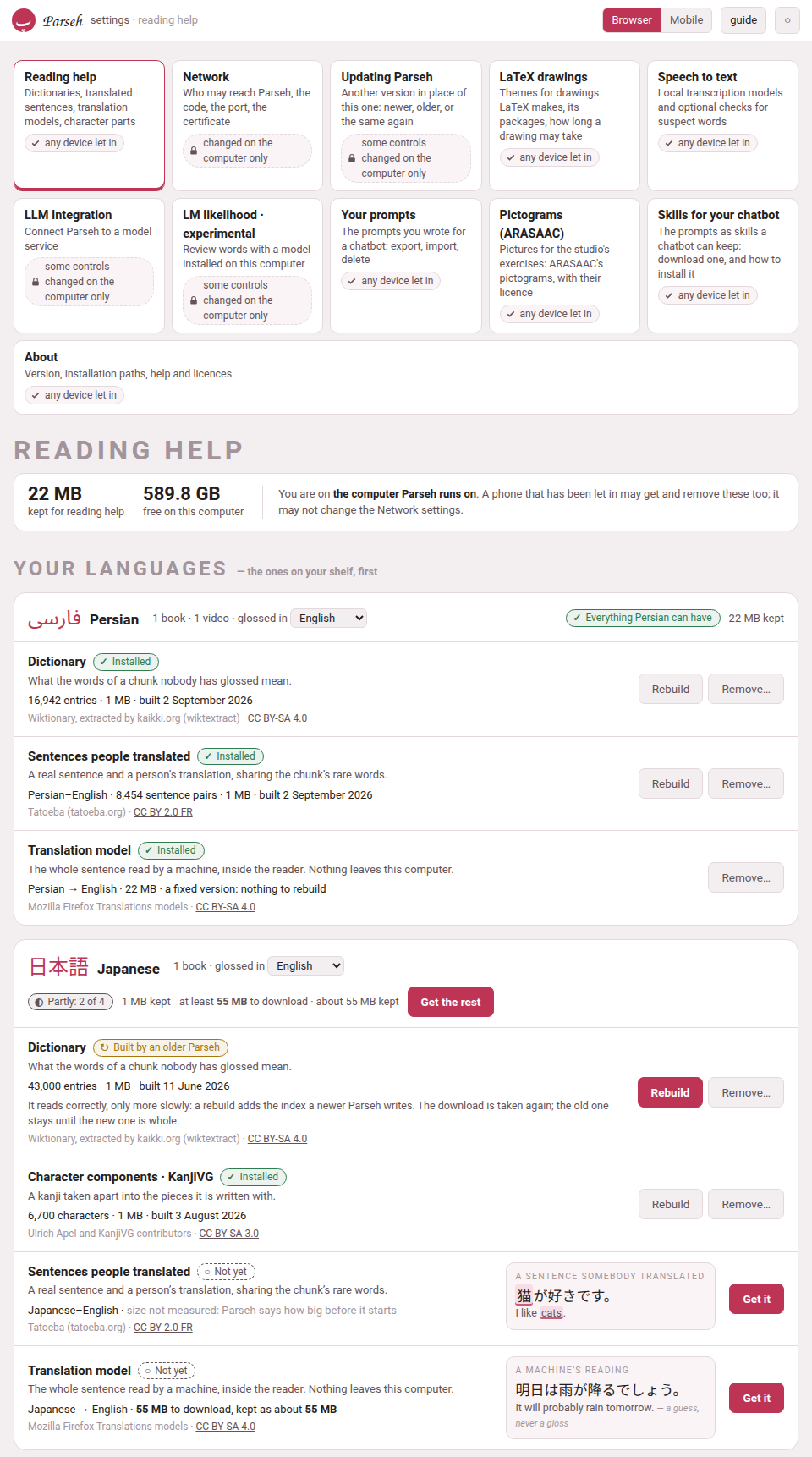
It is laid out by language: a card for each language on your shelf, saying what it has and what it could have, with Get everything and what that costs; the other languages one line each; and a card for what they all share. Each row’s state is a sign and a word — Installed, Built by an older Parseh, Not yet and the rest — with the licence of what it holds and, not yet installed, a small example of what it would add. Sizes are said before anything is fetched, and nothing starts that the disk has no room for. A download shows a bar with the time left, has a Stop, and carries on from where it stopped. Get everything runs on the computer, one download after another, so a phone may lock its screen.
Who may change what is now a property of each setting: one that decides who may reach Parseh, what it exposes or what it runs is changed on the computer only. So a phone let in may get and remove a dictionary, but not touch Network or update Parseh — each says why, with a lock — and the pairing code is shown on the computer alone (The reading-help page, From a phone or another computer).
A language you add is yours#
A language added with lib/newlang.py is kept in config/languages.json, beside your settings, where an update cannot take it away, and its Anki note types take ids Parseh’s own languages never use (Adding a language).
Only Parseh’s own pages change anything#
A page on another site, open in the same browser, could make the browser send Parseh a request that changed something — stop it, delete a book, empty the clip tray. Now anything that changes Parseh must come from one of Parseh’s own pages; any other request is refused, in words, and changes nothing. Reading is as it was: a link from anywhere still opens a Parseh page, and ./serve.sh stop still stops it (Troubleshooting).
Offline only when the computer is really gone#
Parseh says offline only when it is sure the computer cannot be reached: at once when the phone has no network, within a few seconds when the computer refuses, and after 45 seconds of silence when it answers nothing at all — which is what a computer that is off or asleep looks like over Tailscale. A slow answer is never offline: while one is late, a quiet checking… stands where the chip would and everything goes on as usual. Refreshing a page always asks again — the browser’s reload, a pull down from the top, or the new ↻ beside the offline chip, which in the app on an iPhone or an iPad, with neither of the other two, is the only refresh there is (Browser and Mobile).
Estimating the rest by the sound#
estimate the rest (E) — on the sheet that moves a book’s boundaries by ear, and on a video’s the timings — has a switch beside it: by the text or by the sound. by the text is the guess it always made, a slice of what is left for each piece in proportion to its text. by the sound reads the picture of the sound instead and puts each boundary in a pause it shows, where the length of the text allows, following the pace of the speech as it changes. It hears where the voice stops and starts, never which word is which: a better first guess to correct by ear, not an alignment. When it is done it says how many boundaries sit in a pause it heard. It takes a few seconds for an hour of recording, and up to about a minute for four; meanwhile stop estimating (or Esc) gives the wait up and keeps whatever you moved by hand.
It needs a picture of the sound, and is greyed where there is none, saying why: on a YouTube video, draw the sound first; a book’s reader built before it gains it with rebuild the reader. It also needs one more package, NumPy, which the installer adds, and so does an update from Settings that brings it. The choice is remembered in this browser, for books and videos alike (Fixing the timings, The timings).
A page for a website opens on Sepia#
A document, or a deck’s exercises, exported as one HTML page now opens on Sepia, the warm paper made for reading, whatever the studio was showing when you made it and whatever the student’s computer or phone prefers, even opened straight from the disk. That is only where it starts: Aa still offers Paper, Sepia and Dark, and the page forgets the choice when its tab is closed (A page for a website).
The dictionary in a sheet, on a phone#
On a phone, the dictionary no longer opens inside the gloss cloud, where it was a small box scrolling inside the page and over the word. It rises from the foot of the screen in a sheet, as Keep on this phone does: as tall as the entry, up to most of the screen — even under a video pinned at the top — and only the sheet scrolls. The word you looked up stays marked: where there is room above the sheet the page moves it there, and where there is not the sheet covers it, and closing the sheet shows it again. Each word’s senses are numbered, one to a line, its part of speech a small label beside it; and Persian, Arabic and every other language are set in their own type and direction. Swipe it down, tap beside it, or go back to close it, and nothing is left open. A video, or a book being read aloud, waits, paused, while it is up; on the whole screen the sheet covers the subtitles, and going back closes the sheet and leaves the video where it was.
The gloss cloud is the gloss, as it always was, and a chunk is glossed when anything is written under it — a meaning, a transliteration or a vocabulary line: it opens its gloss beside the word, and dictionary, beside copy, opens the sheet. With the dictionary switched on, only a chunk with nothing written under it opens the sheet at a tap, with no cloud. And a book or a video with few glosses — fewer than half of all its chunks — shows which chunks are glossed, so you can tell which a tap will gloss: where every phrase already has a faint dotted line (a video’s transcript, a book’s first pass in hover mode) the glossed ones have it darker, elsewhere in a book the glossed chunks get a faint dotted line, and over the whole-screen subtitles the glossed phrase’s line is almost white. The cloud’s copy and dictionary are a finger’s size now; a video’s cloud on a phone no longer offers the colour marks, which wrote into the video, and its transcript no longer shows the + between captions that writes a note (Browser and Mobile).
16. a0.3.1 — 24 September 2026#
A blank’s cloud in the browser too#
A fill-in’s blank and a matching exercise’s box open the cloud of the bank’s words in the browser interface as well, as they do on a phone: click the blank, then the word. Dragging is still there, and so is a word clicked and then its blank — which puts the word there and opens no cloud. On a document’s page, in a deck, and in a page exported for a website (Placement, Matching).
The lines around a subtitle, and the dictionary under any gloss#
On a phone, a video on the whole screen can show the caption before and the caption after the one being said, above and below it in the same cloud, a little smaller and greyer; every phrase in them opens its gloss at a tap. The button beside the ⛶ in the corner turns them on and off, and the choice is kept. And the gloss cloud of a book and of a video has dictionary beside copy: it opens the dictionary for a phrase that has a gloss too, which the cloud never did by itself — and, a version later, in a sheet of its own (The dictionary in a sheet, on a phone; Browser and Mobile).
Flashcards to cut out and fold#
In a document’s PDF a flashcard is a card to cut out and fold: a frame with round corners, its front in the left half and its back in the right, drawn as the page draws them — the picture, the recording, the main field bold and the others grey — and a dashed line between the two to fold it on (Flashcards).
17. a0.3.0 — 23 September 2026#
A book that comes onto the phone by itself#
On Android, in Chrome, Keep on this phone no longer needs you to stay on the page. A book now comes by the phone’s own download — its text first, then its recordings — with Android’s notification saying how far it has got, and the button says Keeping… 43% — you can leave this page: go to another page, close Parseh, lock the phone. Cancel on the notification stops the whole keep and leaves what had come; a second book waits for the first and says so; a book that needs, for a moment, more room than the phone has free says so before it starts, with Keep it anyway and Not now. If it finishes while Parseh is closed, the notification says so, a tap on it opens the book, and the next page you open says it once at its foot. Kept on this phone lists a book still coming as coming — 43%, with Stop. And a keep that stops part-way keeps what had come and says why, each reason in its own words: stopped, a file the computer no longer has, or no room.
The button no longer goes back to Keep on this phone in the middle of a keep, on any phone: it says Keeping… until the keep is over. On the iPad, and in a browser without that download of its own, keeping is as it was: stay on the page until it says the book is on this phone (Browser and Mobile).
The videos and the studio’s pages on a phone#
The mobile interface (Browser | Mobile, below) now has the videos and the studio’s pages too: a shelf of channels, with a channel’s videos one tap inside it — the browser’s own shape, instead of one long list of every video of every channel — the player itself with its transcript and glosses (the video at the left and the transcript at the right when the phone is turned, with a divider you drag, and a full-screen button that lays the line being said over the video — tap a phrase in it and its gloss opens), and the studio’s library and documents, to read, with their exercises still answerable.
The narration is moved from the foot of the screen. ↺, ⏯ and ↻ float in the corners a thumb reaches, with the speed beside them; they fade when you stop touching the screen. Hold ↺ or ↻ to choose how far they carry (1 · 2 · 5 · 10 · 15 · 30 · 60 seconds — one and two for going back over the phrase you have just heard, in a video as in a book), and tap the speed to choose how fast the narration plays. The computer’s reader has ↺ ↻ now too, with Shift+← and Shift+→ — and the speed no longer falls back to 1× by itself when the recording changes. The controls keep their order in a book that reads right to left: time does not run backwards in Persian, so ↺ stays behind and ↻ stays ahead, wherever the words go. ⏯ shows ‖ and ▶ — the marks the rest of Parseh uses, and not the one an Android phone drew as an orange emoji. A video keeps its own speed now, apart from a book’s — watching and listening are different habits — and the speed you tap is the speed shown at once, instead of a change late.
The whole screen, on a video, is Parseh’s own. ⛶ used to hand the screen to YouTube’s frame, which took it whole: no subtitles could be drawn over it and the way out was a bar that would not answer. Now the page goes full screen and Parseh lays the video out on it — the picture on black, the line being said at its foot, the controls where your thumb left them — and there are three ways out, so nobody is shut in: the ⛶ in the corner, your phone’s back gesture, and a tap on the black beside the picture. A tap on a word of the subtitle opens its gloss over the subtitle, where your finger is. Where a phone refuses the whole screen, you get the same layout with the browser’s own bars, and it says so rather than doing nothing.
A finger reaches what a key reached: hold a finger on a word for Card for “word”, Copy the chunk, Copy the sentence. And a ? in the bar, on a phone or a tablet, says what any button does when you tap it — the explanations that only a mouse could read before.
Parseh keeps your place. The reading place of each book, the narration’s speed, the gap, the seconds and the theme are the computer’s now, so a phone goes on where the desk stopped — and it never moves you without asking.
With the computer away#
It works with the computer away. Keep a book, a video, a deck or a document on this phone, and it opens, reads and plays with the computer asleep, off, or a train away — the narration seeks as it always did. Kept on this phone lists what you keep and gives the room back. Studying a deck away is a check-out: take the deck out, study it on the train, and every answer is sent home and scheduled as soon as the computer is there (the mobile pages).
Keeping was mended where it had never really worked. A kept book would open half-drawn in airplane mode and stop: one script every reader loads was in no list, and the page never reached its text. A kept deck never showed an exercise, because its exercises were asked for in a way no phone is allowed to keep — now they come with the deck, with their pictures and their recordings, one tick and nothing to choose, so Cram all works on a train. A fully narrated book offered you no recording to keep at all where its narration was written the older way, or was a .webm. And a kept book played to the times it was built with rather than the ones you had corrected.
A tick now means the file is really there. Change what is kept looks at every file on the phone before it draws a tick — the computer sends a checksum with each one — and says so: Looked at file by file: what is ticked is whole on this phone. A download cut off by a tunnel, or a refusal the phone kept by mistake, is unticked and says kept, but no longer whole — tick it to fetch it again. Beside it, Change what is kept and Remove from this phone now share one line, half each. The recordings in that list say which chapters and sections they cover, not only their paragraph numbers, and the lines are narrower and against the left so there is room to scroll with a thumb.
And Parseh remembers that the computer was away. Open a page after one that said offline and it starts offline too, instead of pretending for a few seconds that all is well. It still asks every time and puts itself right at once if the computer is there.
And the app says when it is ready. Installing it puts the icon on the home screen at once; Parseh then fetches the pages it needs to open with the computer away, and says how far it has got — Getting ready — 12 of 46 — on the install page, which says Ready when they are all there, and on the mobile hub, which says nothing once there is nothing left to fetch. On the hub that line stands at the foot, under the doors, so it never pushes them down and lets them spring back under your thumb (Parseh as an app).
Settings, and a phone let in with a code#
The hub has a ⚙ Settings door, and its first page is Network: who may reach Parseh — this computer, a VPN, the Wi-Fi — the port it answers on, and a certificate of your own, each changed with a button and taking effect at once, with no terminal. A phone on the Wi-Fi is let in once, with a short code shown on the computer (Who may reach Parseh, Letting a phone in).
Notes open at once, keep a folded run, and travel with the book#
A note used to open the studio’s whole document page inside the reader — editor, scripts and all, about a megabyte of them, every time, and again for every book. Now it opens as the note and nothing else: the studio’s own sheet, with its face, its colours and its marks, and no machinery behind it. The reader and the player also fetch the notes within a screen of where you are, so a mark opens the moment you press it, even from another room over a slow connection. Open in the studio is in the window’s head when the full page is wanted, and a note that holds an exercise opens that full page straight away, so nothing unanswerable is ever shown.
A folded run no longer swallows its notes. Folding a run of paragraphs hid the seams and the marks in them. The fold bar now carries a row of the marks of every note inside the run — the first three, then +N more — and the row goes away when you open the run.
And your notes go onto the phone with the book. Keeping a book or a video used to keep the text and the recordings and leave every note you had written behind, so on a train each seam opened on nothing. Keep on this phone now has one line for all of them — its notes · 34 · about 280 kB — ticked unless you untick it: the marks are in their seams, the notes open looking exactly as they look at the desk, and one that holds an exercise can be answered away from the computer. The pictures in your notes come with them; their recordings are a line of their own beside the narrations, so nothing heavy is kept by surprise. Write a note at the desk afterwards and its mark is there the next time the phone can reach the computer; delete one and the phone gives the room back the next time you save that list, saying how many first (Notes in the seams, Browser and Mobile).
A frame off a film, and a video that will not play#
A film on this machine gives its frame straight away. The picture is read off the film itself, so there is no question about sharing the screen, nothing to allow and no window to keep in view — and it works on a phone as on the computer. A YouTube video’s frame is still taken from a share of this tab, which is a computer’s affair: no phone browser shares a tab, and on a phone the button now says exactly that instead of failing for a reason that was never the real one (Recordings and frames).
A video YouTube will not play says why. A video that is gone, private, or whose owner does not allow it to be played outside YouTube used to leave an empty black box; now it says which of those it is, and what you can do.
And it no longer says that on a phone that is online. The player used to put up the video needs an internet connection after six seconds, whatever had really happened — and on a phone it happened often, because the app had started fetching its own pages the instant any page loaded and was taking the bandwidth YouTube’s player needed. The fetching waits for the page now, and keeps out of its way; the player waits for the video’s own answer, gives it a real chance, and then says what actually went wrong, with Try again and a way out to YouTube.
Picking a part of the book#
The fold sheet, the sections sheet and a recording’s covers used to offer every paragraph of the book — or every subparagraph — in long lists, twice over. They now show the book as an outline: its chapters, their sections, and their paragraphs by number and first words. A click takes a whole chapter, section or paragraph; Shift-click, or stretch it to…, takes everything in between; and the pick is said in words (chapter 2 · The Wind · 14 paragraphs). In the sections sheet you pick what you want to name: a chapter, a paragraph, or a section’s heading to rename or remove it.
What a recording covers is now written with its chapter (2:1.1), since every chapter has a 1.1. A recording of chapter 2 used to answer for chapter 1’s subparagraphs of the same numbers too. A recording saved before, without the chapter, is read from its first label to the first matching label after it — so in a book whose chapters each number from 1, a recording of chapter 1 stays in chapter 1, where it used to run on into every later chapter. See Picking a part of the book.
Licences#
The foot of the hub, in both interfaces, now leads to Licences (/licences/): what Parseh is under — the GNU GPL, version 3 or any later version — with the licence’s text, and, work by work, the fonts, MathJax and the data the reading help downloads, each under its own licence. See Licences and credits.
These pages are the whole manual#
The PDF manual that came before these pages is gone: they are the whole manual now, and its old address, /guide.pdf, opens them instead (This guide, below).
Glossing a stretch with an LLM#
A book’s reader has gloss with an LLM in its header (and gloss around here with an LLM… in the chunk sheet), and a video’s player the same in its bar. Pick a stretch — subparagraphs in the book’s outline, or a first and a last caption clicked in the transcript — and copy the prompt: it carries the stretch as it stands, the chunks nobody has glossed marked to do, the glossed ones as context, and the language’s own conventions. Paste the chatbot’s reply back and press fill from the answer: the chunks are written one by one, through the same door as a hand edit, and the report says what was filled, completed and replaced, and what was kept, dropped or left unanswered.
What is already glossed is never changed by an answer, whatever it says: Parseh works that out itself, from the files as they are when you paste. Two checkboxes widen it — re-gloss what is already glossed (which asks you to press twice before it replaces anything) and also fill the empty boxes of partly glossed chunks (which asks for every empty box of a chunk that has a gloss, a vocabulary line left empty on purpose included) — and an answer never writes half a gloss. See Glossing a stretch with an LLM and Glossing captions with an LLM.
Deleting a gloss#
delete gloss, in the chunk sheet and in the player’s ✎ form, takes a chunk’s whole gloss off in one click — the text, the colour and the word line stay — and undo delete puts it back, for as long as the page is open. A deleted gloss counts as no gloss, so the next LLM prompt asks for it: delete, copy, paste is how one chunk is glossed again. See Deleting a gloss and, in the player, Deleting a gloss.
A blank gloss is legal everywhere#
A chunk nobody has glossed used to be legal only in a book or a video marked a draft, by a line in its book.json or video.json that had to be taken out by hand at the end. There is no such mark any more: a blank chunk is legal in every book and every video, for good. The checkers count blank chunks in one note (3 of 12 chunks have no gloss yet) and list a chunk half glossed as an error. The chunk sheet and the ✎ form save a gloss one box at a time, and refuse only to empty, on its own, a box the language requires — emptying every box is delete gloss. A cut or a join may leave halves blank or half glossed, and a video bundle brought back with a half glossed phrase is taken in, with a note. The draft tags on the cards and the draft marks in the reader and the player are gone; a "draft": true still in an older file is simply not read. See Glosses still to write and A video still being glossed.
A page for a website#
A document, or a deck’s chosen exercises, can now be one HTML file to put on a website for students who have no Parseh, or to send: Download ▾ → HTML page, for a website (.html) on a document’s page, and Export selected to HTML beside Cram exercises on a deck’s page. The file works with no server behind it, even opened from the disk. A document’s exercises can be answered and checked; a deck’s page crams its exercises as the cram page does. Pictures and recordings travel inside the file, a clip cut down to its stretch where ffmpeg is installed, and a video stays YouTube’s player (which plays only on a website: opened from the disk, a line under it says so and opens it on YouTube). Aa sets the size of the text and the theme. The page holds none of the Markdown and nothing that edits, keeps nothing and sends nothing, and its foot says it was exported from Parseh, with links to Parseh on GitHub and to this guide. See A page for a website and Cram mode.
18. a0.2.0 — 22 September 2026#
The books and the exercise decks on a phone, and as an app#
The hub was the first mobile page; the books — a shelf, and every book’s reader as a reader only, with ↺ ↻ to move the narration by ten seconds (or as many as you set) — and the exercise decks have followed: a cram of your own picked from a deck, by tag or one by one, and Next in the very place Check was. Every mobile page is made for a phone held sideways as well as upright. And the mobile interface installs as an app: an icon on the home screen, the whole screen for the page, no address bar (Parseh as an app).
On a phone, a fill-in’s blank and a matching exercise’s box are filled the other way round: tap the blank or the box, and a cloud offers the words of the bank below (Placement, Matching).
Cram mode’s Skip, and how it went#
Cram mode has Skip too, as studying has, and its end now says how it went and lists the exercises you got wrong at least once and the ones you skipped — each shown solved at a click, and crammed again at one (Cram mode).
19. Before a0.2.0#
What was new when Parseh was first published, on 21 September 2026, before it had a version number.
Links between documents, by name#
A link from one studio document to another used to name the target by a code nobody could read. It now names it by its name — its title, exactly as its title: line spells it:
[the companion piece](doc:Verbs of motion)[](doc:The shape of a Persian word)The second, with nothing between its brackets, shows the other document’s title as it is now. What follows from that:
- Names are unique.
- No two documents of one library — the studio’s, or the notes of one book or one video — share one. Whenever a save, a new document, Paste LLM answer, Upload .md / .zip or Load from backup would take a name already in use, nothing is written and a dialog opens, This name is already in use, with a field to rename the document already there, a field to rename the one coming in, or both. A name still taken is said under its field, and the dialog stays open.
- Renames follow into every link.
- As in Obsidian, change a document’s title and every link that named it — in other documents, in itself, in the exercise decks — is rewritten to the new name, its shown text kept.
- A link to a deleted document is left hanging.
- It is drawn red and dashed, and works again the moment a document of that name exists — made, uploaded, restored or renamed.
- ↩ Linked from (N).
- Beside ☰ Contents on a document’s page, it opens a drawer listing every document that links to this one, each with a few words around the link.
- Doc link…
- in the editor writes the link for you. Links written the old way still work, and were rewritten by name the first time the server met each library — the studio’s when it started, a book’s or a video’s notes when they were first opened.
- Two documents that shared a name were told apart then too.
- Nothing forbade it before — a book’s notes were all called A note — so that same first time, the oldest kept the name and each later one got a number after it, in its header: A note 2, A note 3 and so on. A title that suddenly ends in a number is one of those: rename it as you like.
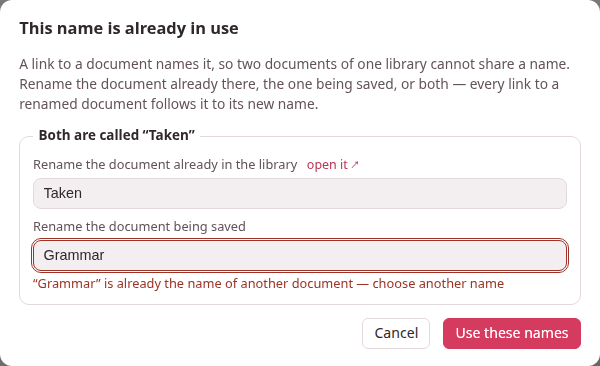
All of it: Names and links.
The enlarged flashcard#
⤢ Enlarge on a flashcard opens the same card over the page, laid out exactly as it is on the page — every field where it sits there, a right-to-left paragraph on the right, a Latin block to its side, every line breaking where it breaks there — and then magnified as much as the window allows. On a phone it is laid out a little narrower instead, so it can be up to twice as large, though a line that is whole on the page stays whole: only a paragraph that already wraps there may wrap at other words. A click, Space or Enter turns it; Escape closes it. See Flashcards and Studying.
The RTL editor#
For a document whose prose is a right-to-left language — a Persian teaching English to Persians — ⇤ RTL editor in the editor’s bar sets the whole source right to left, in the face of that language, every line of it, a prompt: or meaning: with a Persian sentence included (a line of Latin letters alone then reads as any right-to-left editor draws it); ⇥ LTR editor turns it back. A document whose lang: is Persian or Arabic opens right to left by itself, and the choice you make is remembered for each document. Only the source box changes; the preview is drawn as before. See Writing in the editor.
Large print, and black and white#
PDF options ▾, beside Build PDF on a document’s page:
| Option | For |
|---|---|
| Print size: Normal · 11 pt, Large · 14 pt, Extra large · 17 pt, Maximum · 20 pt | Readers with low vision. Everything grows with the text, and the exercises a step larger still, with more room to write. |
| Black and white — no colour, no grey (pictures keep their colours) | Photocopies: the tints go white, coloured words print black. |
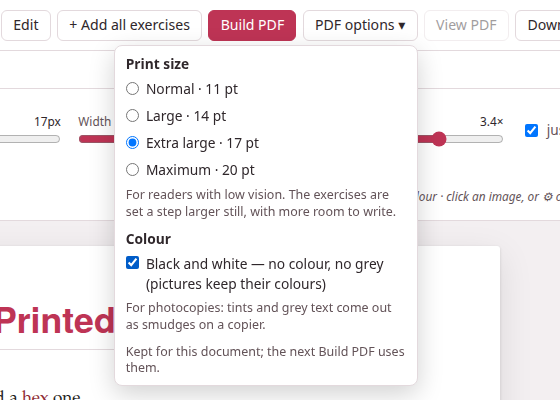
The choice is kept for each document, and the build badge says what a PDF was built with (17 pt · B&W), and built with other options — rebuild when the menu now says otherwise. Large print needs the TeX package extsizes, which ./install.sh --pdf installs (on Windows, your TeX’s package manager: MiKTeX Console, or the TeX Live Manager). See Printing to PDF.
Exercises laid out for a pen#
On paper, and only on paper:
- Matching
- — every entry of both columns in a frame of its own, the columns equally wide, with a gap between them for the line the student draws.
- Construct the sentence
- — the chunks in a row, each framed, and under them lines to write the whole sentence on: as many as it takes to hold one and a half times the sentence, measured as it is set.
- True / false and yes / no
- — each statement wraps in a column of its own, and the marks sit in a column at the right, level and aligned on every row.
See Exercises on paper.
Working…#
Whatever takes a while — a book being built, an upload, a download being packed, a backup, a restore, a narration being aligned, a studio PDF, a dictionary being fetched — now shows on every page until it is over: a pill in the corner says Working: and what, with +N more when there are several. Click it for the list, each with its time, its progress where it is counted and open the page it was started from; shrink folds it to its spinner. The hub lists the same in a Working… panel under its bar, and every stop button says what is still running before it stops the server.
The size of “all of it”#
A narrated book’s download sheet now says how big each of its three shapes is, and all of it counts every recording — a book read in nine parts carries nine files — where it used to count only the first. A reader built before this says the old figure until rebuild the reader. The player’s ⤓ says the same of a film on this machine. See Taking a book away.
Browser | Mobile#
The hub’s top bar has a new switch. Browser is every page as it has always been. Mobile is a streamlined set of pages for reading on a phone, with no editing on them: a single column, big doors with their counts, the language chips in one row, and the guide — and nothing that edits or administers. The choice holds on every page and after a reload. The hub was the first mobile page; the others followed it, version by version, above.
See Browser and Mobile.
This guide#
The hub’s guide button opens these pages, at /guide/. The pages have a list on the left, a search box that finds any word on any page, the three themes, and working examples of everything the studio’s Markdown can hold.
- The installers compile the guide every time they run;
./install.sh --guidecompiles it alone. - When Parseh serves it and the pages are missing, the front page offers Compile the guide; when they are older than their Markdown, Compile the guide again.
- Opened straight from the disk (
html-guide/index.html), it needs no server at all. - It can be published on GitHub Pages, and taken into a project of its own.
Writing this guide explains how the pages are written, and Compiling and publishing how they are compiled and published.
New starter pages#
+ New in the studio opens a new document on a page written afresh for each of the eleven languages: a guided tour, in English, of everything a document can hold — boxes, headings, target-language runs and blocks, readings and colours, lemma headings, tables, footnotes, links by name, formulas, pictures, a recording, a video, and one exercise of every kind — with correct examples in that language. It ships with two pictures and a short chime, which become the document’s own when it is saved; delete what you do not need. See The library page and The Markdown dialect.