The reader
Click a card on the library and the book opens in its reader, at /books/<language>/<slug>/reader/. It is one page: a header with the controls, and the book under it, subparagraph by subparagraph, each set in the levels its language has (Levels and their names).
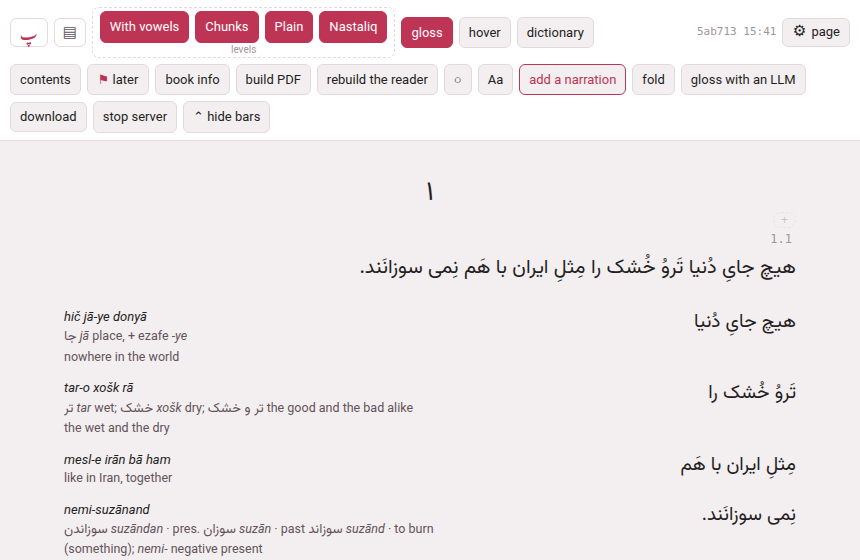
1. The header#
The header has two rows (three while the narration’s own player shows, in edit times or while nothing is timed yet). What is in it depends on the book: the playing controls appear only in a book with a recording, and the reading-help switch only where something is installed for the language. The ⚙ page button at the end of the first row opens one panel with every setting of the page — what the header keeps in reach is what you press while reading, and what is rarer is in the panel (The ⚙ settings of a page).
The first row — getting about, playing, and what is shown:
| Control | What it does |
|---|---|
| پ | back to the hub |
| ▤ | back to the library |
| ↺ 10, ▶ / ‖, 10 ↻, keep going, loop, listen, the speed chip (1×) | playing the narration: Playing and listening. Only in a book with a recording. between repeats appears beside loop while it is on, and highlight and keep in view beside listen while it is on. |
| the levels, each by its name | one button for each level of the book — With vowels, Chunks, Plain… — under the word levels; each shows or hides its level, and pointing at it says what it shows. The choice is remembered for every book. Levels and their names |
| gloss (G) | shows or hides the glosses beside the chunks, leaving the chunks themselves |
| hover (H) | hover mode: the text alone, and a chunk’s gloss in a cloud when you point at it (below) |
| dictionary | reading help where nothing is glossed: Reading a book nobody has glossed. Shown only when a dictionary, a corpus or a translation model is installed for the language. Its other switches — Show the dictionary’s definitions, Translate the definitions into the gloss language — and the link that gets a dictionary, Get a dictionary for this language →, are in the panel’s Looking a word up |
| the time | in a book with a recording: where it is, 0:42 / 12:05, and which recording when there are several |
| the build stamp | which build of the reader this is, and when it was made (04ad5c 14:23) |
| ⚙ page | the panel of settings for this page, at the end of the row |
| PDF behind the text — build it | appears after an edit: the reader shows it, the PDF does not yet. Click it to build the PDF. |
The second row — the book’s own tools:
| Control | What it does |
|---|---|
| contents (C) | the table of contents: Contents, sections and folding |
| ⚑ later 3 | the chunks you flagged to come back to, and how many are in this book: Review later |
| book info | the title, author, year and blurb (below) |
| build PDF | builds the PDF, and the reader with it, on the server: The printed edition |
| rebuild the reader | writes this page again, without LaTeX — what a book built before a new feature needs to gain it |
| ○ ● ◐ | the theme — light, dark, sepia — one choice for the whole toolbox |
| Aa | opens the ⚙ panel at its text sizes and margins (below) |
| narration — add a narration in a book with none | the recordings of the book: Adding a narration |
| fold | folds a run of paragraphs away: Contents, sections and folding |
| gloss with an LLM | copies a prompt that has an LLM gloss a stretch of the book, and fills in its answer — where nobody has glossed, unless you tick a box to widen it: Glossing a stretch with an LLM |
| edit times, save times (N), discard edits | fixing the timings by hand: Fixing the timings. Only in a book with a recording. |
| edit times by ear | the sheet that moves the boundaries over a picture of the sound, opened on the recording the text is following and at the subparagraph you are on — for when you hear the alignment lost: Fixing the timings. Only in a book with a recording. |
| download | the book as one zip: Taking a book away |
| stop server | stops Parseh. It turns into really stop? for four seconds, and a second click stops it — after naming anything still running (a build, an upload) that stopping would cut off. Your place and your speed are saved first. |
| ⌃ hide bars | puts the header away (below) |
| Decompose Kanji / Decompose Hanzi | Japanese and Chinese only (below) |
2. Reading place#
A click anywhere in a subparagraph makes it the reading place, and highlights it — and, where it has a time in the recording, plays it. The place is remembered for each book in this browser: open the book again and the page goes back to it. → and ← move to the next and the previous subparagraph.
The contents are links, so the address bar carries the paragraph you jumped to — …/reader/#par-2-6 — and sending that address to yourself (from a phone to a computer, say) opens the book at that paragraph.
One chapter at a time. A book of several chapters arrives with its first chapter only; every other chapter is fetched when it is wanted — the contents jumped into it, the reading place is in it, the narration played into it, or you simply read on and it came near. Nothing else changes, and it is what makes a long novel usable over a phone’s connection to a computer at home. The one thing given up: the browser’s own find-in-page sees only the chapters that have arrived. The filter of the contents finds every paragraph of the book.
3. Levels and glosses#
The level buttons show and hide the levels one by one: turn everything off but the first to read the sentence alone, or leave only the chunks to work through the glosses. gloss keeps the chunks and hides their glosses, so you can test yourself against the column of chunks. Every choice is remembered in this browser. A level has a name, which you can change (Levels and their names), and in a Persian or an Arabic book Diacritics, in the panel, puts the vowel marks away from the first two.
4. Hover mode and the gloss cloud#
hover (or H) strips the glosses out of the page, so you read the text clean, and shows a chunk’s gloss only when you point at it in the first level. It is how an edition is meant to be read once a chapter stops being new. In the panel it is Glosses in a cloud. While it is on, the buttons it swallows — the chunks level, the other face or the vertical level, and gloss — go grey, because pressing them would change nothing; the levels that are the sentence alone keep their buttons.
The cloud holds the chunk’s reading (in Japanese), its transliteration, its vocabulary line and its meaning, and under them four buttons:
- + card
- makes a card of the chunk (below);
- ⨉ copy
- copies the chunk’s text;
- ✎ edit
- opens the chunk for writing (Writing a chunk);
- review later
- flags the chunk to come back to, and reads ✓ marked once it is (Review later).
The cloud stays open while the pointer moves into it, and goes when the pointer leaves or you click elsewhere. On a touch screen, a tap on a chunk opens its cloud and a second tap closes it.
Pause while a gloss is open — in the panel, under Glosses in a cloud, and only in a book with a recording — makes a narration wait for you to read. With it on, opening a cloud — pointing at a chunk, or tapping it — pauses a playing narration, and closing the cloud lets it go on a third of a second later, so that moving from one chunk to the next does not make it stutter. A narration you paused yourself is never started by it, and if you press play under an open cloud it leaves that alone. The card sheet, the chunk sheet, the fold sheet, the LLM gloss and the narration panel each look after the recording themselves, and the switch does not go on under any of them: when one is open the narration stays paused until you press ▶. It is the video’s switch, worded the same (The player), and like it is remembered on this device only: it is not one of the settings the computer keeps for you, and it is not drawn in a book with no recording. Like ↺ and ↻ beside ▶, it comes from Parseh’s own server: a reader opened off the disk, or an exported copy, does not have it.
A chunk that nobody has glossed yet has no vocabulary line, and where nothing is installed for reading such chunks the cloud says nothing glossed here yet and links to the page that sets it up. Where something is, and the dictionary switch is on, the cloud holds what it found instead (Reading a book nobody has glossed).
5. Copying#
A plain click sets the reading place and a modifier-click makes a card, so copying takes a held Shift. With Shift held, the chunk under the pointer is outlined; Shift-click it — in any level — and its text is on the clipboard. Shift-click beside a chunk and you copy the whole sentence. A toast says what was copied. On a touch screen, where there is no Shift, use ⨉ copy in the cloud. Readings (the kana over Japanese words) are never copied with the text.
6. Making a card#
Alt-click (or Ctrl-click, or ⌘-click on a Mac) any word of a chunk — in the first level or in a chunk row — and the card sheet opens with that word; + card in the cloud does the same for the whole chunk. The sheet sends the card to Anki, to one of the toolbox’s exercise decks, or as markdown to the clipboard, as a vocabulary, opposites or jolly card, with a recording cut from the narration if you like (🔊 cut the audio…). For Markdown or an exercise deck, Parseh marks the target and context as target-language blocks automatically, one block per written line; it leaves a field that already contains markup alone. Anki cards are unchanged. The Cards and Anki section of this guide covers the sheet in full; the narration pauses while it is open.
7. Aa: text and margins#
Aa opens the ⚙ panel at its Text group — one set of sliders, remembered in this browser; Put the text back to normal puts back the printed edition’s proportions, and Aa again, ✕ or Esc closes the panel.
| Slider | Range | What it sets |
|---|---|---|
| Persian text size (the book’s language: Japanese, Arabic…) | 7–43 px, 20 to begin with | the size of the text |
| Gloss size | 7–23 px, 12.5 | the size of the glosses |
| Text width | 200–1680 px, 760 | the width of the column; on a screen narrower than that, the column is the screen’s width |
| Line spacing | 0.5–1.9×, 1 | the space between the lines |
| Height of vertical columns | 6–54 em, 22 | Japanese and Chinese: the height of the columns of the vertical level |
| Space between characters | −0.1 to 1.5 em, 0 | Japanese and Chinese: space between the characters of the running text; below 0 they are set closer, until they touch |
| Furigana contrast | −60 to 100 %, 0 | Japanese: how dark the furigana are, from the faint grey of the page’s secondary text (0) to the full ink of the text (100); below 0 the grey fades further, to less than half at −60 |
| Furigana size | 10–310 %, 50 | Japanese: the size of the furigana against the characters under them |
The Japanese and Chinese sliders act on the running text; the cloud always keeps the full reading.
8. Japanese and Chinese#
Readings over the words. The first level (Furigana, Pinyin) sets each word under its reading — kana in Japanese, pinyin in Chinese — as the chunk’s word line divides it (a chunk without a word line has its kana spread over its kanji as far as the kana allows). The word line is written in the chunk sheet’s words strip (Writing a chunk).
I know this. A reading you no longer need can be hidden. In the gloss cloud, each word with a reading has a button, <word>: I know this; pressed, it becomes <word>: show reading, and the reading of that word is hidden wherever it appears in this book. A chunk without a word line has one button per kanji instead — <kanji>: I know this — and a compound’s reading hides once all its kanji are known. A word hidden because all its kanji are marked says so: unmark one of the kanji to see it again. The choices are kept in this browser, for this book.
Decompose Kanji (in a Japanese book) or Decompose Hanzi (Chinese), at the end of the second row, turns on a mode in which every character of the text is a button: a bar says Choose a kanji in the text with Done to leave. Click a character — or Tab to it and press Enter or Space — and a window shows how it is built: a tree of its components, each with its meaning from the installed dictionary (or Meaning unavailable), and the way they are put together (Left and right, Top and bottom…). Click a component to explore it in turn; ← Back and Return to <character> walk back. Esc closes the window, and a second Esc leaves the mode. The narration pauses while the window is open.
The components come from packs installed once on the reading help page (the Character components row of the language’s card): until one is, the button opens a window saying Install character components, with a link to that page. A character no pack describes says so.
Kanbun. A Japanese or Chinese text read out of its written order — kanbun — can say so in book info (below): the words strip then stops warning that the words’ readings, run together, disagree with the chunk’s own reading.
9. Book info#
book info opens a sheet for what the chunks do not reach: title, its translit., the English title (the title in the gloss language), author and its translit., year, and the blurb the library card shows — and, for Japanese and Chinese, order: read out of its written order (kanbun). save (Ctrl+↵) rewrites book.json, and the reader is rebuilt with the new title at once.
The title, the author and their transliterations are also the PDF’s title page, written into main.tex, so saving rewrites that too — or refuses the whole edit, and says why, if a new value cannot sit there (a character LaTeX reads as an instruction, for instance). The PDF itself catches up at its next build: PDF behind the text — build it appears in the header. Esc closes the sheet without saving; the narration, paused while it is open, plays on.
10. The bars, and a phone#
⌃ hide bars — Hide the bars in the panel’s Levels & reading — puts the whole header away and gives the window to the text; one faint ⌄ show bars button stays in the corner to bring it back. The choice is remembered for every book: it is a way of reading, not a property of one book.
On a phone (a screen 560 pixels wide or less) the header also slides out of the way by itself as soon as the page moves down, and comes back on the smallest move up — so no button is ever a chapter’s scrolling away. While the bars are put away by hand, that sliding stands down, and ⌄ show bars is what brings them back.
In the toolbox’s Mobile mode the reader is still this same page, with its header laid out again for a thumb: پ ▤ ☰ Aa ⚙, and on a narrated book ↺ ▶ ↻ — the narration back ten seconds, play, on ten seconds, or as many as Skip distance in the panel says — on a line of their own upright and on the same line held sideways. The ⚙ opens the page’s panel as a sheet from the foot of the screen, with everything the header does not keep in reach: a list of themes first, each saying what it is set to, and one theme at a time (The ⚙ settings of a page). While listen is on, a second line holds highlight, keep in view, the position and the seek bar. And nothing on it writes the book: no book info, no builds, no narration panel, no folding, no timings, no pencil, no cards. Every book’s reader has it, however long ago it was built. Browser and Mobile says what is where.
With a hardware keyboard in Mobile mode, ← and → skip the narration by the same seconds as ↺ and ↻. Shift+← and Shift+→ are deliberately left to this reader’s previous/next-subparagraph keys.
11. Keys#
| Key | Does |
|---|---|
| Space | play / pause |
| → ← | next / previous subparagraph |
| R | loop this subparagraph |
| G | glosses on / off |
| H | hover mode on / off |
| L | flag the chunk under the pointer to review later, or take the flag off (Review later) |
| C | the contents |
| E | write the chunk under the pointer (or in the cloud) |
| Esc | close whatever is open |
| Ctrl+↵ | save, in a sheet that has a save button |
None of them fires while you are typing in a box.
Opened off the disk. A reader is a file, and can be opened straight from the disk (reader/index.html) to read; everything that writes — editing, the narration panel, folding, building — needs the page served by Parseh, and says so instead of failing quietly.