The document page
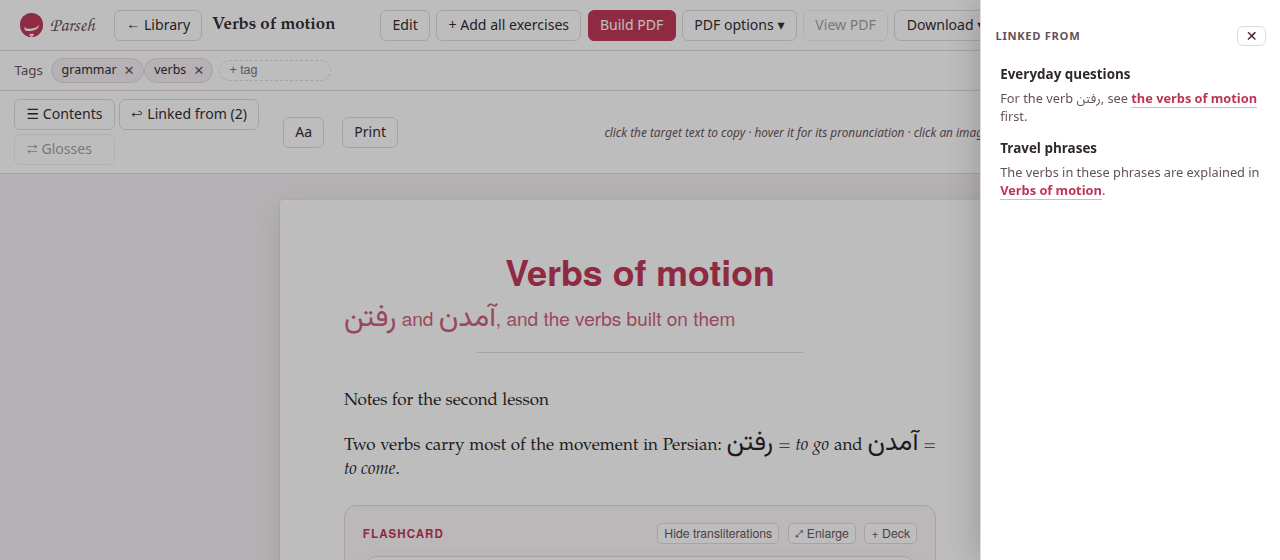
A click on a card in the library opens the document’s page, /studio/doc/<id>: the document typeset as a sheet in the middle of the window, with the same colours, numbered sections, lemma headings and tables its PDF will have. Three bars stand over it — the top bar, the tags, and the toolbar — and every one of them can be put away.
1. The top bar#
From the left: Parseh (the hub), ← Library, the document’s title (the whole of it on hover, when it is cut short), and then:
- Edit
- opens the editor.
- + Add all exercises
- copies the page’s exercises into an exercise deck at once: see Reading, annotating and practising. It is there only when the page has an exercise or a gloss to copy.
- Build PDF
- and PDF options ▾ make the PDF, and View PDF shows it in place of the sheet (View web brings the sheet back): see Printing to PDF.
- Download ▾
- — see below.
- ⋯
- holds Duplicate and Delete document.
- Stop server
- stops Parseh, after asking.
- ◐
- is the colour scheme, one for the whole toolbox, and ⚙ page opens the page’s panel — its text sizes, the exercises’ two switches, the zoom, the colours and the interface (The ⚙ settings of a page).
2. Tags#
Under the top bar, Tags lists the document’s tags, each with a ✕ to take it off. Type a new one in + tag and press Enter (or a comma): it is added at once, and the box offers the tags the library already has as you type. Tags are stored in lower case. They are how the library’s tag filters find the document.
On the right of the same bar are the badges of the last PDF build: see Printing to PDF.
3. The third bar, and the page’s panel#
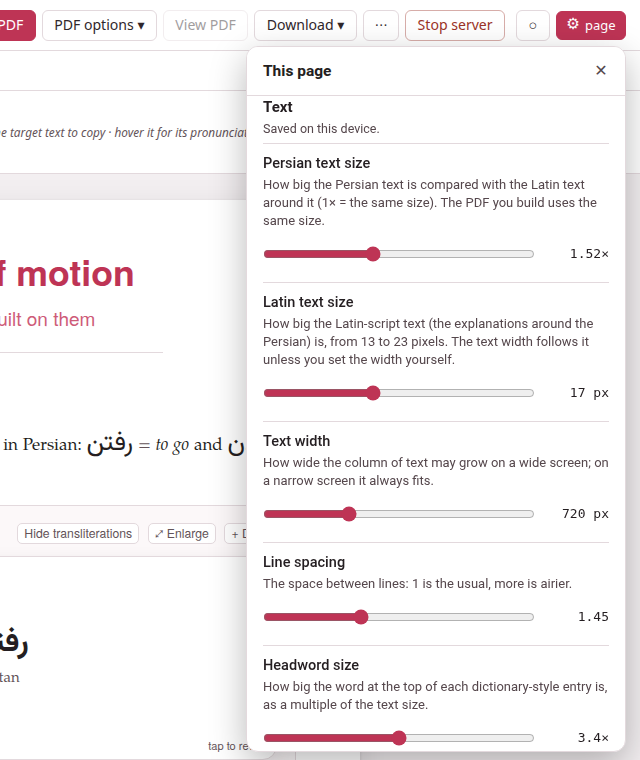
The third bar holds the tools of the page — ☰ Contents, ↩ Linked from, ⇄ Glosses, Aa and Print, which prints the page as it is set, without the bars. How the sheet looks is set in the panel behind ⚙ page, and Aa opens that panel at its Text group, on every width. Every setting takes effect as you move it.
| Row | What it sets |
|---|---|
| Persian text size (the target language’s name) | the size of the target language’s script relative to the Latin text, from 0.8× to 2.6×; the same knob the PDF build uses as its scale |
| Latin text size | the size of the Latin text, 13 to 23 pixels |
| Text width | the width of the text column, 420 to 1,400 pixels |
| Line spacing | the space between lines, 1.15 to 2 |
| Headword size | the size of the big headwords of the dictionary-style entries, 2.2× to 4.6× the text size |
| Justify the text | justified text, hyphenated, as in the PDF — or ragged |
| Put the text back to normal | every size back to the one the PDF starts from |
The target size starts where the language’s script looks right beside Latin text — 1.52× for the Arabic script, 1.20× for Japanese, Chinese and Devanagari, 1× for a language written in the Latin alphabet. The Width follows the Latin size, so the two move together; drag the width yourself and it keeps the new proportion from then on.
The settings are remembered for the document, in this browser, and the last ones you set are where every document you have not set yourself starts — the target size only among languages of the same script, so a Persian size never reaches a Japanese page. The sheet has no theme of its own: it is painted in the toolbox’s colours — ◐, or Colours → Colour scheme in the panel — and follows them at once.
The panel’s other groups: Exercises has Hide transliterations, which hides the line that spells a word in Latin letters on every flashcard, Drag to answer, for the exercises whose blocks are put in order, and Check as I answer, which checks an exercise the moment you have answered it (how); Zoom makes the whole page larger or smaller; Colours and Interface are the toolbox’s own.
⌃ hide bars, in the toolbar — Hide the bars, in the panel’s Page group — takes all three bars away and leaves one faint ⌄ show bars in the corner to bring them back: the whole window for the text. That choice holds for every document, since it is a way of reading rather than a property of a page.
4. Contents#
☰ Contents opens the table of contents as a drawer over the page: the sections, the subsections and the lemma headings, in order. Click one and the page goes there, the drawer closing behind it. Escape, the ✕, or a click beside the drawer closes it too. The sheet stays where it is, centred in the window, whether the drawer is open or not.
5. ↩ Linked from#
↩ Linked from (N) says how many documents of the library link to this one, and opens a drawer from the other side of the page listing them: each document’s title, a link to it, and under it the words around each of its links here, the link itself marked — a Persian line read right to left, an English one left to right. A document links here when it names this one by its name, or by the permanent id of a link written before names; its links to itself are not listed. A document nothing links to says No document links here yet.
The drawer closes on Escape, on its ✕, or on a click beside it. Only one drawer is open at a time: opening ☰ Contents closes it. On a note beside a book or a video it lists the notes of that book or video that link to it.
6. Glosses, colours, exercises#
The page is not only for reading. A click on a word of the target language copies it; pointing at it shows or edits its pronunciation or reading; ⇄ Glosses turns every gloss of the document into a table and a flashcard drill; the exercises can be answered and checked; a flashcard opens large with ⤢ Enlarge; and + Deck copies an exercise into a deck. All of it is on Reading, annotating and practising. The hint at the end of the typography bar says the first of it: click the target text to copy · hover it for its pronunciation · click an image, or ⚙ on a player, to lay it out.
7. Download ▾#
Download ▾ takes this one document away:
- Markdown (.md)
- — its source, named after its id without the random end (
verbs-of-motion.md). - Markdown + media (.zip)
- — the Markdown with the pictures and recordings it shows, and its tags, in one zip. The library’s Upload .md / .zip takes it back, pictures and all.
- LaTeX (.tex)
- — the
.texthe last PDF was built from, by itself. - LaTeX + media (.zip)
- — that
.texwith everything it includes, so that it compiles somewhere else, in Overleaf for one: the pictures it shows, the fonts it asks for, and, for each LaTeX drawing of the document, the compiled PDF it includes and the.texthat PDF was made from, to change if you want. AREADME.txtin it says how to compile. See the PDF. - — the last PDF built.
- HTML page, for a website (.html)
- — the document as one file that works anywhere, for students who have no Parseh: its exercises working, its pictures and recordings inside it, and none of its Markdown. See A page for a website.
LaTeX, LaTeX + media and PDF are greyed out until a PDF has been built; the HTML page needs no build. For many documents at once, the library has Download N shown.
8. Duplicate and Delete#
⋯ → Duplicate makes a copy of the document — its text, its tags, its pictures and its recordings — and opens it. The copy is named after the original: Verbs of motion (copy), or (copy 2) when that is taken, in its front matter as in the library, so the two never share a name. It has no PDF of its own yet.
⋯ → Delete document deletes it, after asking — Delete “…”? Its builds are deleted too. This cannot be undone. — and goes back to the library. The document’s folder goes, with its pictures, recordings and PDF; there is no bin. Links to it from other documents stay as they are, waiting for a document of that name (see Names and links).
The question is asked in a window in Parseh’s own colours — the same one the exercise decks ask in, in paper, sepia and dark alike — and never in the browser’s grey box. Cancel has the focus, so Enter does no harm; Escape or a click beside the window cancels, and nothing is deleted. If the delete fails, the window stays open and says why, and Delete document can be pressed again. Deleting from the library’s ✕ asks the same question, and the card goes from the shelf the moment the document is gone, with no need to leave the page and come back.
9. On a phone#
On a narrow screen the top bar and the typography bar are pinned to the top of the window, and both go away as the page moves down and come back on the smallest move up. The toolbar keeps ☰ Contents, ⇄ Glosses, ↩ Linked from and Aa; Aa opens the page’s panel at its text sizes (on a phone, as a sheet from the foot of the screen, on its Text theme), and closes it again. The ⚙ sits in the top bar, after ◐; the Browser | Mobile switch is in the panel’s Interface group. The top bar’s buttons scroll sideways when they do not fit.
↑ Top, in the lower-left corner, takes a long document back to its beginning; it appears once you have scrolled some way down, on every screen.