Adding a video
The + Add a video card on the videos page opens /youtube/add/. It needs no Claude Code and no access to the project’s files: everything is done in the browser, and nothing is written until what you give it has passed the same checks the pipeline runs.
1. Two questions first#
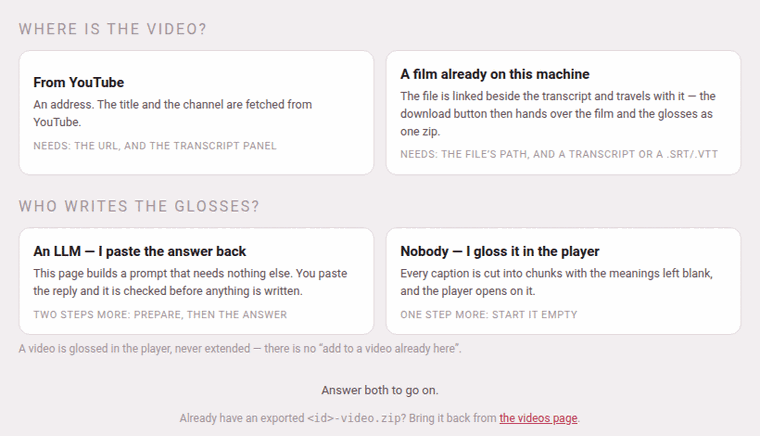
The page opens on two questions, and shows nothing else until both are answered — only the steps your two answers need come after them.
Where is the video?
- From YouTube
- — an address. The title and the channel are fetched from YouTube.
- A video or a sound on this machine
- — a video file, or a recording with no picture (an
.mp3, say). It is linked beside the transcript and travels with it, and the download button then hands over the film (or the sound) and the glosses as one zip. It is named by its path, or sent from another device. See A film on this machine.
Who writes the glosses?
- An LLM — I paste the answer back
- — the page builds a prompt that needs nothing else, you give it to any model you like, and you paste the reply back; it is checked before anything is written. Two steps more: prepare, then the answer.
- Nobody — I gloss it in the player
- — every caption is cut into phrases with the meanings left blank, and the player opens on it. One step more: start it empty.
All four pairs are real:
| An LLM | Nobody | |
|---|---|---|
| From YouTube | the prompt, the answer, Check & add the video | Start it empty |
| A video or a sound on this machine | the same, with the film or the sound put beside the transcript | Start it empty, with it put beside the transcript |
A video is glossed in the player, never extended: there is no “add to a video already here”. The address remembers your two answers (/youtube/add/?src=film&by=empty), and a link under the questions points to the videos page for a video you already have as a zip.
2. Step 1: the video#
- YouTube URL
- takes any of the ways a YouTube address is written —
watch?v=…,youtu.be/…,/shorts/…,/embed/…— or the bare 11-character id. - The video or sound
- takes the full path of the file on this machine (
/home/you/films/lesson-1.mp4,/home/you/lesson-1.mp3); when you leave the box the page says what the file is. Under it, Choose a video or a sound… sends the file instead — from another device, or where there is no path to type — and puts its path in the box; see A film on this machine. - Language
- is the language the video teaches. It starts on the language the toolbox’s chips last picked. It decides which captions count as plain — for a language with its own script, a caption with not one character of it (the English opening of many lessons) is never glossed — and the folder the video is filed under (
youtube/videos/japanese/…). - Glossed in
- is the language the meanings are written in: an Italian learning English wants them in Italian. It lists first the languages this toolbox teaches, then a few it can write in but does not teach (Portuguese, Dutch, Catalan, Romanian, Polish, Russian, British and American English). It starts on English and remembers your choice for the next video.
- Details the answer may not know (optional)
- — or, where there is no answer or no YouTube to ask, Details this page cannot fetch — holds Title, Channel, Level, the title in the video’s own language (the field is named after it: Persian title, Japanese title) and Blurb, one sentence for the card. What you type here wins over whatever the answer or YouTube says.
3. Step 2: the transcript#
On YouTube, open the video’s description, press …more, then Show transcript; select the whole panel and copy it. Paste it into Transcript as it is, timestamps included:
0:00Welcome back to the channel, today we learn Persian at the greengrocer'sفصل ۱: در میوهفروشی0:06سلام، ببخشید سیب چند است0:12کیلویی سی هزار تومان، تازه آمدهThe panel is read exactly as the rest of the toolbox reads it: a line that is a time starts a caption, the lines under it are what is said, a line like فصل ۱: … or Capitolo 3: … is a chapter marker that becomes a heading over the next caption, and the spoken-duration line some panels add under each time (1 minuto e 6 secondi, ۱ دقیقه و ۳ ثانیه) is dropped. The box also takes a whole .srt or .vtt subtitle file — the page says so when the video is a film, and reads one on either road (A film on this machine).
If there is no transcript to paste, the box can be filled by speech to text, on this computer, if you have set that up: see Or have this computer write it below. Pasting is never taken away and never needs it.
Edit the transcript… opens a small subtitle editor over the panel, to mend what YouTube heard and where it cut before anything is built from it: see Mending the transcript first. It is the one moment the transcript can be changed — and it opens on a transcript speech to text made just as it opens on one you pasted.
A stray line on every caption#
Some panels repeat an extra line on every caption that the reader does not know to drop — a second timestamp, or a duration written in a way it was not told to expect. the paste repeats a stray line on every caption? opens a row for that: Drop pasted lines where line-number mod 3 equals 1, and Remove those lines. The first pasted line counts as 0, so a panel that repeats time, duration, caption has its durations at 1, 4, 7… — mod 3, remainder 1. It rewrites the box in place and says how many lines went; look at the result before going on.
4. Or have this computer write it: speech to text#
Under the transcript box there is one more block, Speech to text — optional. It makes the transcript for you, on the computer Parseh runs on: a speech-recognition model called Whisper listens to the video, and the words it hears, with their times, wait in a pending review in the panel format above. The audio is processed there and nowhere else, and nothing is sent to a speech-recognition service.
It is optional in every sense. The manual road — a pasted transcript, a .srt or a .vtt — is exactly what it was, and needs none of this. And it is offered only here, while a video is being added: a video already in the library has no such button, no transcribe again and no model to pick in its player, on purpose. What you add is corrected with the tools every transcript has.
Where you install it. In Settings, the door Speech to text — a program and a catalogue of standard and language-specific models, fetched only when you press a button there. Until then the block is one sentence and a link, Set up speech to text, which opens that page in a tab of its own; opening the add page never downloads anything. Once it is installed, this page notices the next time you come back to it, with no reload. Any device that has been let in may use it, a phone or another computer, and the transcript is still made on the computer Parseh runs on. Six language-specific choices use verified prepared ZIPs via Import & install…: the two Persian models, Arabic dialectal, Italian, Hindi fast and Spanish. The packages already contain converted weights and any merged adapters; no conversion software is needed on your computer.
What you choose.
- Model.
- Installed standard models and installed models for the selected language are offered. Standard large-v3-turbo and large-v3 stay available; Persian and Hindi can also have separate fast and accuracy-oriented choices. A short line explains the intended trade-off, which is not an accuracy guarantee. Manage models opens installation and the per-language preferred-model settings.
- Processing.
- Automatic — recommended, CPU, or NVIDIA GPU, a choice of its own, not another model. It says what it means in words: Processing: Automatic · currently CPU. The CPU works on an ordinary computer, needs nothing, computes in INT8 and is the way it always works. An NVIDIA graphics card can be much faster, and NVIDIA GPU appears only when the computer has shown that the card is ready — for this version of the program that is a driver and cuBLAS for CUDA 12 (cuDNN is not needed; the Speech to text page says exactly what and where to get it). A card that is there but is not ready is said, with what is missing, and the CPU is used. Not having CUDA never stops a transcription. Automatic uses the card when it is ready and the CPU when it is not; if the card fails to start the model it goes on on the CPU and says so, once. NVIDIA GPU, chosen and failing, says why and does not quietly switch.
- The language
- is the Language of step 1 — Whisper is told it, so choose the one that is spoken. All eleven of the toolbox’s languages are offered (and a language you added, if Whisper knows it; where it does not the block says so and offers nothing).
- Exact word times.
- When Settings has the optional network for this language, this switch starts on and says that word starts will be aligned after Whisper has made the unchanged captions. Turn it off to use Whisper’s own word times instead. The choice is remembered in this browser; an absent network says not installed — Settings and Whisper still works normally.
The model selection is remembered on this host for each language. Processing and exact-word-time preferences are remembered in this browser.
A film on this machine. Press Transcribe. The computer reads the file itself, so nothing is played and any browser will do — a phone’s too. The path in step 1 is a path on the computer’s disk, even when you are using the page from another device. A line says where it is — Loading large-v3-turbo…, Transcribing on CPU… 39% — and Cancel stops it. No sound is recorded and no waveform is made: a film’s is drawn from the film itself (A film on this machine).
A YouTube video. Nobody can read a YouTube video’s sound but the tab it plays in, so it has to be played, and recorded, in real time: a 47-minute video takes 47 minutes. That needs Chrome or Edge on a computer (the tab’s sound can be recorded there); in any other browser, on a phone, or on a page not opened at the server’s https address, the block says which of these is missing, in one sentence, and the rest of the page works.
- Press Transcribe. The page loads the video in a frame on the page.
- Read what the block says, and press Start recording. The browser asks which tab to share: choose this tab, and turn on “Share tab audio”. The video plays from its beginning.
- Keep this tab in front until it is done. The page counts the recording against the video’s length, and leaving the page asks first.
- When the video ends, the computer listens to what was recorded — Loading…, Transcribing… — and the words arrive.
If the share comes without its sound, is refused, or the video is one YouTube will not play here, the page says so at once, before anything is recorded, and you can press again. If YouTube plays an ad, or the video stops moving, the recording is stopped and nothing is written. Cancel stops the video and the recording, throws away what was sent and leaves the transcript box exactly as it was. The recording is kept privately with the pending review so Whisper can recheck words later, including after Save & pause. It is deleted when you use or discard the review. Local films are read in place.
What arrives. The words wait for review; Transcript stays unchanged. In the Browser interface, Transcribe opens a dedicated window within the page. The video stays on the left and the transcript and word editor sit on the right. Click a word to listen from its Whisper timestamp; playback pauses 0.6 seconds after its end. Click a caption’s time to play that caption and pause just after it. Replay word and Replay caption include the selected Context before and after the speech. The −1 / −2 / −5 s and +1 / +2 / +5 s buttons move playback without changing any transcript timings. When a word has no timestamp, playback uses its caption’s time and says so.
Use Needs attention, LLM proposals, the text search, or Previous issue / Next issue to work through a long transcript. Accepted and manual edits appear immediately in the pending transcript. Return to Add Video pauses playback and keeps the pending draft; Resume transcript review opens it again. A live YouTube recording must finish or be cancelled before returning to the page. Discard review leaves the transcript box untouched.
The transcript workspace opens immediately: edit by hand, listen, lock checked words, or use the transcript without running another tool. The Review tools buttons stay available together. Try Whisper second pass, Suspect words, Whole-text review, Reasoning workspace, or LM likelihood in any order on the same draft. Connected LLM tools send text and Whisper evidence to the destination shown only when you press their buttons. A low Whisper score below 0.5 is marked ⚠, a word with no meaning in an installed dictionary is marked ◇, and an LLM edit proposal ✎. The threshold stays 0.5. Dictionary lookup uses the same normalization and base-form rules as the readers; names or rare terms can still be valid. The word inspector shows the original word’s dictionary meanings and the meanings of each native Whisper alternative and proposed LLM replacement. Native Whisper beam alternatives, when an exact word mapping is possible, have whole-hypothesis log scores rather than word probabilities. Hover, focus or click/tap any word to inspect or edit it with the keyboard. If Whisper split a word into neighboring pieces, use Include previous word or Include next word in the word editor, then type the corrected word or short phrase. The editor shows exactly which original words will be replaced. You can include up to eight consecutive words in one caption; locked words are protected. Save correction in draft keeps the change pending until Use this transcript. The reasoning workspace can also propose a correction for these neighboring pieces, including a confident neighbor beside a suspect word. Automatically run a second Whisper pass, in Settings → Speech to text, controls whether suspect words are rechecked immediately after the first pass and dictionary checks. It starts checked; turn it off to begin reviewing sooner. Use Whisper second pass later for remaining unlocked suspect words in all text or the selected section, or Whisper second pass for this word in the word inspector. It adds alternatives from an independent audio crop; original words and their timestamps stay intact. Its progress counts processed words. Choose Use this Whisper alternative to put a candidate into the draft. Accept or reject proposals in the pending draft. LLM progress counts suspect words; failed sentences leave their words intact while the run continues. Retry all remaining suspect words retries unresolved words while retaining accepted/manual edits. LLM responses shows actual model output. The Correction skill panel, under Models, preferences & skills, provides download, installation and optional native Unsloth skill invocation. Only Use this transcript places it in the box, timed to the video’s own clock (a stop to buffer does not shift what follows). See LLM Integration. All three LLM methods also offer Use an external chatbot · copy & paste. The additional LM likelihood method searches raw token probabilities for candidate words and ranks the original, all Whisper alternatives and those candidates using fixed surrounding text. It has separate installed-model settings and sends no chatbot prompt. Choose the method, Prepare external prompt, copy it to your chatbot, then paste the answer and Import answer into review; the review then goes through the answers with you, one word at a time (Go through the model’s answers). No saved connection is required. The workspace method also downloads its transcript and CSV files. Its Python helper checks edits during work and checks required entries before the model returns its answer. Parseh independently validates imported proposals; no checker applies changes without your approval. Long transcripts have several prompts and word-count progress; you can finish with received answers, then retry or manually edit unresolved words. Imported proposals still require acceptance and Use this transcript. Then the box is yours to edit by hand or in the editor. Parseh keeps the timed-word track only long enough to add this video; it is adopted as wordtimes.json when you use the matching edited transcript, and the captured audio is not retained. Then:
- the video is not added. You read it, correct it, and go on by the road you chose, exactly as with a pasted transcript;
- a prompt you prepared before is out of date, and is taken away; it is prepared again from the new transcript;
- it never writes over your words unasked. If the box holds something when you press Transcribe, the page asks first; and if the box changed while it was running or during review, the stale result is discarded. Final Use this transcript asks before replacing a different, nonempty box;
- the box is tied to what made it: this video, this language, this model. Change one of them and the page says, quietly, that the box is no longer tied to speech to text; it stays as it is, and a new transcription will ask first. Changing Processing alone changes nothing about the words, so it changes nothing here;
- while it runs the video, its language and the model are held — the page says a transcription is running — cancel it first — because a transcript is made for one of each;
- a reload finds a running job again — a film’s, or a YouTube video’s once its recording was all sent. A recording itself cannot outlive the page it was made in: it is stopped when the page is left, and Transcribe starts it again.
A recorded YouTube video keeps its waveform. The shape of the sound is drawn from the same recording, so when you add the video it comes with its waveform, and the timings sheet has nothing to record.
Only one transcription runs at a time, on the whole computer: a second one is refused, Another transcription is running.
5. With an LLM: the prompt#
Word list offers the word lists under youtube/docs/ — a list per family of videos that keeps names and transliterations the same from one video to the next. none is the default; only the prompt uses it.
The scheme of the transliteration is chosen above the button, with the language’s own word for it (transliteration, rōmaji, pronunciation): usual scheme or IPA. With IPA the prompt asks for IPA wherever the answer carries a transliteration, and the video is then kept in IPA — every later prompt for a stretch of it asks for it too. Persian and Arabic have a second choice, short vowels: as they are or write them. Both are remembered on this device, and the first line of the prompt says what was chosen (· IPA, · marks, · no marks). With write them the answer’s phrases carry the caption’s text with its short vowels put in and nothing else changed; the page’s checks set the marks aside, so such an answer passes them, and the caption’s own text stays what YouTube had (more).
Above the button, prompt: Parseh’s ▾ chooses which prompt is made: Parseh’s own, or one of your own for this language, which you can write there with new. A prompt made for another choice is out of date, as it is when the language changes.
Prepare & copy the prompt reads the transcript with the language you picked and puts a self-contained prompt on the clipboard. It holds:
- what the method is for, in one paragraph — you read the video a phrase at a time, the gloss says what that phrase says, in the order of the captions, and hovering brings the reading and the words — and the rule that follows from it: a meaning is a gloss, not a translation, with a short example of each (What the meaning says);
- the conventions — what is the same for every language (the size of a phrase, the fields, the rule that a word is glossed fully the first time and then left bare) and what is the language’s own (its transliteration scheme, what never to gloss, how to cut it into phrases), cut to what this prompt needs;
- which language the meanings must be written in, on a line of its own under This video — with not in English after it when that language is any other — and the card’s blurb asked for in the same language;
- a worked example — the language’s own, from its conventions: a chunk or two with their transliteration, vocabulary line and meaning, so that the prompt has one on every computer, whatever videos are on the shelf;
- the word list, if you picked one;
- the captions, numbered, with their start times — the plain ones and the chapter markers shown for context and marked not to be annotated — and, for Japanese and Chinese, the machine’s own division of each caption into words under it, for the model to start from and correct. A sentence tells the model that they are text to annotate and not orders.
The page then says what it found — the id, the title and channel YouTube gave, how many captions, how many to annotate, how many plain, how long — and how long the prompt is. The prompt, as copied shows it, with copy again. If the video is already in the player it says so: adding it again will replace it.
Paste the prompt to any LLM. A long video may not fit one answer: the prompt tells the model to stop at a caption and go on in the next message.
A box left empty is answered on the page itself, before anything is asked of the server: paste the URL (for a film, name the film on this machine) and paste the transcript first — and at Check & add the video, the transcript is needed too and paste the answer first.
What Prepare refuses, in its own words:
| It says | Which means |
|---|---|
| that is not a YouTube URL (or id) – or name a film on this machine instead | the address could not be read |
| no captions found – paste the transcript as YouTube shows it, timestamps included | the box holds no line that is a time |
| every caption is plain (not one character of Japanese script) – nothing to annotate; is the language right? | the language picked is not the video’s |
| ’xx’ is not a language this toolbox teaches | a code nobody can use (only reachable by hand) |
6. With an LLM: the answer#
Paste the model’s whole reply into the answer box — or several replies, one under the other. The page reads the ```json blocks in it and merges them in order, and a caption given again in a later block replaces the earlier one: that is how a correction lands. A fence with no json on it that holds words rather than JSON is prose, and is passed over; with no block at all the page tries the whole text as JSON. Then press Check & add the video.
The answer is checked with the pipeline’s own tools, before anything is written:
- every caption that wants glossing is in the answer exactly once, found by its number or by its start time;
- the phrases of each caption, joined back, reproduce the caption letter for letter — the one test that stops a model rewriting the video;
- every phrase the model glossed is glossed whole, with the fields its language requires (the meaning; the transliteration where the language wants one; the kana for Japanese) — half a gloss is refused. A phrase the model left with nothing written in it is legal: it goes in blank, the answer’s notes count it, and you gloss it in the player;
- Japanese and Chinese words, where given, join back into their phrase — and a phrase the model left without words is given the machine’s division, to correct later in the player.
Then the page writes the video into a hidden staging folder, runs merge_parts.py and check_annotations.py on it exactly as the pipeline does, and only if both pass moves it into youtube/videos/<language>/<id>/. A failure leaves the videos exactly as they were. The batches the answer was cut into are dropped in the staging folder once both tools have passed on what they built: the video reaches the shelf with annotations.json and nothing beside it to rebuild from (A video’s files).
When it is added the page says so — Added. 38 captions glossed, 40 captions in all. — says how many phrases were left without a gloss, to fill in the player, and how many had their words proposed by the machine, and links Open the video →. What the pipeline said holds the two tools’ own output, and a line of notes lists anything worth a second look (a plain caption the model annotated anyway, which is ignored; a correction taken from a later block; the checker’s warnings).
When it is refused nothing is written, the reason is said at the top, and To fix, then paste again: lists every caption that needs it:
2 caption(s) missing from the answer: [14] 62s, [15] 66scaption [3] (start 12) appears twice in the answercaption [7] (start 30) chunk 1: missing 'tr'caption [9] (start 41): chunks do not reproduce the textEvery line names a caption the way the prompt did — its number in square brackets and its start — so the model can find it. Paste those lines to the model as they are: it answers with the corrected captions only, and that block goes under the first answer in the box, where a caption given again replaces the first one (the page says so in a note). A caption twice in the same block is still refused. Everything is re-derived at each press, so an answer from an earlier session works as well as one from a minute ago.
A video already in the player is refused with the folder it is in and a checkbox beside the button: replace the existing videos/persian/<id>/ (the old one is kept under videos/.trash/). Tick it and press again. The old copy — under this language or any other — goes to the trash, where you can still find it.
Title, channel, level and blurb come, in that order of preference, from the details you typed, from the answer’s video object, and from YouTube; the level is beginner when nobody says.
7. Without an LLM: start it empty#
The second road uses no model at all. Cut the captions into chooses how each caption is divided:
- one chunk per sentence
- (the default) — every sentence one phrase, for you to divide. Where a sentence breaks into phrases is the editorial heart of the method, so nothing guesses at it unless you ask.
- sense groups (the dictionary reads the parts of speech)
- — a first division at the edges of phrases (a preposition with its noun, a verb with its auxiliaries), read from the language’s installed dictionary. Without one, a language written with spaces is cut only where its own short list of function words or its punctuation allows, and a sentence that offers nothing stays whole. Japanese and Chinese need no dictionary: each is cut between the words its analyzer divides it into (SudachiPy for Japanese, pkuseg for Chinese) where that is installed, and otherwise from its characters — Japanese after its particles and its punctuation, Chinese at its own punctuation (
,?。) and after 吗 呢 吧.
Either way you can re-cut any phrase in the player (Cutting and joining).
Start it empty writes video.json, transcript.txt and annotations.json, with every transliteration, vocabulary line and meaning blank, says Drafted. with the counts, and opens the player on it. A blank phrase is legal in any video, for as long as it stays blank: the checker counts such phrases and asks nothing else of them. Gloss them in the player, a phrase at a time or a run at a time by an LLM — see A video still being glossed.
On this road nothing is fetched from YouTube: the title is the one you type in the details, or the video’s id, and the channel Unknown channel unless you name one. A video started empty cannot be started again over itself — annotations.json already exists in … – draft into a new name, or move that one out of the way — so move the old one off the shelf first; only the LLM road can replace.
8. What the page keeps for you#
Every field — the address or the path, the transcript, the answer, the language, the details — is kept in this browser as you type, so a reload, or a day away, loses nothing. It is cleared once the video is added. So is what ties the box to the speech to text that made it, and the token of the waveform held for it; the model and the processing you chose are kept for the next video.
While the prompt is prepared, an answer is checked and added, a film is added, or a transcript is being made, the Working pill of every page, and the hub’s list, say so.
For the command line. youtube/PROMPT.md is the same job for a Claude Code session opened in the project — for a long video that wants a word list of its own. python3 youtube/lib/import_old_video.py <dir> brings in a video from the older watching-edition format (a segments.json, a sections.json and a script.tex), and python3 lib/draft.py video … starts one empty. See A video’s files.