The library page
The library is the studio’s front page, /studio/: every document as a card, and above them the ways to find one and the buttons that bring documents in and take them out.
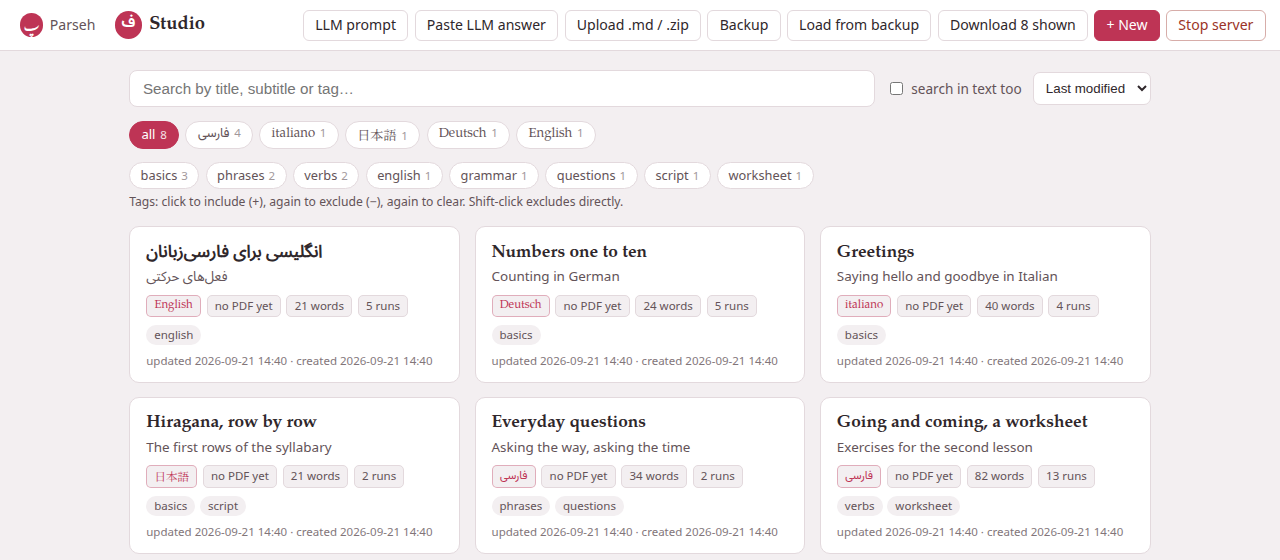
1. A document’s card#
Each card shows, from the top:
- The title
- — with any word of the target language in its own face.
- The subtitle
- — the front matter’s
subtitle:line. - The badges
- — the target language, in its own script (فارسی, 日本語, italiano…); the state of its PDF, no PDF yet or, for the last PDF that built, PDF ✓ with its page count and N/N verified (or N verify fail, or not verified when the checker could not run), plus source changed when the document was edited after the PDF was built; and what the document holds: how many lemma headings, words and runs of the target language. A build that failed does not show here: it is said on the document’s page (see When a build fails).
- Its tags.
- When it was updated and created.
A click anywhere on the card opens the document page. The ✕ in its corner deletes the document, after asking in a window of Parseh’s own — Delete “…”? Its builds are deleted too. This cannot be undone. Escape cancels (see Duplicate and Delete). It really cannot be undone: the document’s folder, with its pictures, recordings and PDF, is removed, and there is no bin to take it back from. The links other documents have to it are not touched: they wait, drawn as links to a missing document, until a document of that name exists again (see Names and links).
Under the cards, a line says how many documents there are, whether XeLaTeX (the typesetter the PDF needs) and the Italian hyphenation are installed, and where the library is on the disk.
2. Finding a document#
Everything in the row above the cards narrows the list at once, as you type or click, and all of it can be combined.
- The search box
- looks in the titles, subtitles, notes (the small line under a title) and tags. The comparison is the toolbox’s own: case does not matter, and a Turkish İ is found by typing i.
- search in text too
- extends the search to the whole text of every document, the Markdown included.
- The sort menu
- puts the cards in the order Last modified (the default), Created or Title A–Z. The library remembers the one you chose, in this browser.
- The language chips
- — all, then one chip per language that has documents, each with its count — show one language’s documents. They are the same chips every index of the toolbox has, and the choice is shared: pick Japanese here and the books, the videos and the hub open on Japanese too. The counts follow the search.
- The tags
- in a row of their own filter by what you tagged the documents with. Click a tag once to include it (+): only documents carrying it are shown. Click again to exclude it (−): documents carrying it are hidden. A third click clears it. Shift-click excludes a tag straight away. A document must carry every included tag and none of the excluded ones.
The number on a tag is how many of the documents now in front of you it would leave — not how many the whole library holds — and a tag that would leave none is not offered at all, since it could only empty the page. A tag that is doing the filtering always stays, whatever its count: an excluded tag shows zero by its nature, and hiding it would take away the only way to switch it off.
Clear all filters appears as soon as anything narrows the list — a search, search in text too, a tag, a language chip — and puts everything back.
Your filters wait for you. Open a document and come back: the search, the in-text box and the tags are as you left them. They belong to the browser tab, so a second window can browse the library its own way. The language chip and the sort order are remembered for good.
When no card is left the page says so, in one of two ways:
- No documents yet, with a link to the LLM prompt and to a new document, whenever nothing matches at all — in an empty library, but also in a full one when the search, search in text too or the tags leave no document. The documents are still there: Clear all filters brings them back.
- No … documents here, when documents do match but the language chip hides every one of them.
3. Tags#
A document’s tags are set on its own page, in the bar under the title. They are stored in lower case — Verbs and verbs are one tag — and they travel with the document in its zip and in a backup.
4. + New#
+ New opens the editor on a new document. It is not saved until you press Save: close the tab first and nothing is made.
A new document starts as the starter page of a language: a guided tour of everything a document can hold, written in English about that language, with real words of it in every example — boxes, lemma headings, tables, footnotes, colours, formulas, a picture, a recording, a video, and one exercise of every kind. Keep what you need and delete the rest. Its front matter is filled in:
title: New Persian notesubtitle: a guided tour of everything a note can holdnote: English prose with Persian examples: keep what you need, delete the restlang: entarget: faWhich language. + New follows the language chip: with Japanese picked, it opens the Japanese starter; with all, the toolbox’s first language (Persian). Every one of the eleven languages has a starter of its own. To write about another language, pick its chip first — or change the target: line, and the preview follows at once. The lang: line says what language you write the prose in; see the editor.
Give it a name. The starter’s title — New Persian note — is a name like any other, and two documents of the library cannot share one. Save a second new document without changing it and the studio asks you for another name (see Names and links). Change the title: line before the first save and the question never comes up.
Its pictures and recording. The starter shows two pictures (an apple, a house) and a short chime, and they display in the preview before anything is saved. They ship with the studio, and your first Save copies the ones the text still names into the document’s own folders. From then on they are the document’s files like any other: listed in Images… and Recordings…, taken away in its zip and its backup, printed in its PDF. Delete one there and it stays deleted — a later save does not bring it back, even while the text still names it; the page then shows it as missing, as it shows any file a document lacks. See Pictures and recordings in a document.
Its links. The starter links to My second Persian note (in each language, its own), a document that does not exist yet: the link is drawn as a link waiting for its document. Make a document with that title and the link works — the starter shows you how links by name behave.
5. The bar#
The bar across the top of the library holds, from the left: Parseh (back to the hub), Studio (this page), and:
- LLM prompt opens the prompt page.
- The five buttons Paste LLM answer, Upload .md / .zip, Backup, Load from backup and Download N shown bring documents in and take them out: see Bringing documents in and out.
- Open a file… opens a Markdown or zip file from anywhere on the computer, where it is, without bringing it into the library: see Opening a file from your computer. Any device Parseh lets in may use it: it browses the computer Parseh runs on. While a file is open, a list Files open now appears above the tags, with Read, Edit and Close for each.
- + New starts a document, as above.
- Stop server stops the whole of Parseh — every door, not only the studio. It asks first, and names what is still running (a PDF being built, a backup going up), since stopping cuts that off. The page then says the server has stopped and can be closed.
On a phone the bar goes away as the page moves down and comes back on the smallest move up.